Windows 7: Always Search for Contents Inside Files

By default, Windows 7 only searches within files in certain indexed locations. This tutorial describes how to enable search within the contents of files for all locations.

1. Launch explorer.

2. Press ALT to access the menu bar.

3. Go to Tools->Folder options….

4. In Folder options window, switch to Search tab and choose Always search file names and contents (this might take several minutes)
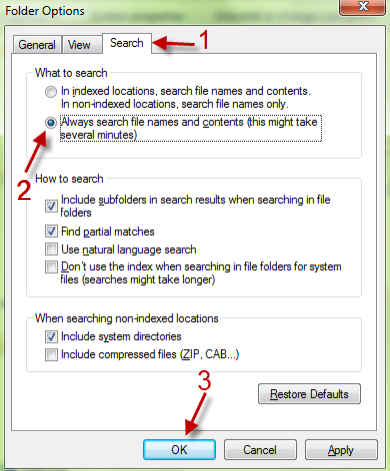
5. Hit OK to save the setting.

From now on, you can search for contents inside files (like .docx, .zip)  in non-indexed locations.

Doing this can slow down your search and index times considerably.


About Lê Hoàng

When not creating exciting new Android games, Lê Hoàng is here crafting tutorials, tweaks, and fixes for your enjoyment.
View more articles by Lê Hoàng

The Conversation

Follow the reactions below and share your own thoughts.

2 Responses to “Windows 7: Always Search for Contents Inside Files”

  1. April 08, 2011 at 9:10 am, Jhill150 said:

    Hi,
    I do not want to search contents of files. It gives me a lot of extraneous info. How do I turn it off for even indexed files?
    thank you,

    Reply

  2. November 02, 2011 at 11:07 pm, Online Games,Search For Files SWF GAMES PLAY said:

    Online Games,Search For Files SWF GAMES PLAY…

    [...]Windows 7: Always Search for Contents Inside Files – Tech-Recipes[...]…

    Reply

Leave a Reply

You may also like-

XP: Have Windows Perform Word or Phrase Searches within Unknown FiletypesBy default window search does not search for words or phrases for all filetypes. For programmers (and the rest of us) who have text-like ...