

This recipe is designed for the more operating system savvy persons and for those who work in an app deployment corporate setting. Many times when you work in IT and in an app deployment team you run into situations where you need to either find a registry key and find a key and replace with a new entry. However, sometimes there are cases where you know the main registry entry key but are not sure which entries below it may need to be changed. Lets find a solution!
WARNING: If you aren’t comfortable with the command prompt, batch files, and the windows registry; please take extra caution when testing/using this batch file. I personally would recommend either testing on a virtual machine (ie Virtualbox, free; VMWare Workstation) or a machine you don’t care about. You’ve been warned. 🙂
OK, first off. lets start with the two pieces of code. To use this, copy and paste them into Notepad and then save with the names given (be sure to change from txt files to All Files in Notepad save dialog box)
File name: Replace.bat ( via dostips.com )
@echo off

SETLOCAL ENABLEEXTENSIONS

SETLOCAL DISABLEDELAYEDEXPANSION

REM BatchSubstitude - parses a File line by line and replaces a substring"

REM syntax: BatchSubstitude.bat OldStr NewStr File

REM          OldStr [in] - string to be replaced

REM          NewStr [in] - string to replace with

REM          File   [in] - file to be parsed

REM $changed 20100115

REM$source http://www.dostips.com

if "%~1"=="" findstr "^::" "%~f0"&GOTO:EOF

for /f "tokens=1,* delims=]" %%A in ('"type %3|find /n /v """') do (

set "line=%%B"

if defined line (

call set "line=echo.%%line:%~1=%~2%%"

for /f "delims=" %%X in ('"echo."%%line%%""') do %%~X

) ELSE echo.

)
___________________________
File name: MainApp.bat
@echo off

REM Author: seamonkey420

REM http://blogs.tech-recipes.com/seamonkey420

REM

REM 3/15/2010

REM This batch will parse and update registry keys for Dictation module

REM Here is what the steps do:

REM 1. Exports the registry key to a viewFolder.txt file

REM    ADD REGISTRY ENTRY TO EXPORT (ie formatted as: HKEY_CURRENT_USER\Control Panel\Mouse)

REM 2. types the display of the file and then finds any entry that contains "Yes" and replaces with "No" and saves to new keys.txt file

REM 3. We echo required registry version into new reg file

REM 4. Then echo section that values will go under

REM 5. Replace the server name from entries using a separate Replace.bat file and then appends (courtesy of www.dostips.com) to newkeys.reg file

REM 6. Finally new registry entries in newkeys.reg file are re-imported into Registry

REM 7. Lastly, all temp file are removed
set rkey=HKEY_CURRENT_USER\Control Panel\Mouse

set findv="Yes"

set replacev="No"

set registryver=Windows Registry Editor Version 5.00

echo "Changing Registry Values, Please Wait..."

REG EXPORT "%rkey%" viewFolder.txt

type viewFolder.txt | find %findv% > keys.txt

echo %registryver% > newkeys.reg

echo [%rkey%] >> newkeys.reg

CALL Replace.bat %findv% %replacev% keys.txt >> newkeys.reg

reg import newkeys.reg

del /q newkeys.reg viewFolder.txt keys.txt

exit
______________________
To use this, you will need to edit the MainApp.bat (right-click on it and click on Edit, Notepad will open)
Basically the MainApp.bat will query a registry key that you define in the “set rkey=” variable (in my batch file, i use two mouse settings as an example)
Then it will export the key and it subkeys to a file called viewFolder.txt
It then use the FIND command to search the viewFolder.txt file for the value set in the “findv=” variable (in my batch file, Yes) and then export those values to a new file called keys.txt
We then create our registry file that will get re-imported with the new values by echoing the required registry version to a file called newkeys.reg
We then will append the registry key we searched under to the newkeys.reg file (in my batch file, the moue control panel key)
Now, we use the Replace.bat file to find the key we want to replace and replace it with the new key entry and then append this data to the newkeys.reg file.
So at this point, we have our ready to re-import registry file with the new values and use reg import to import it back in.
Finally we clean up and remove the newkeys.reg, viewFolder.txt, and keys.txt files and quit our program.
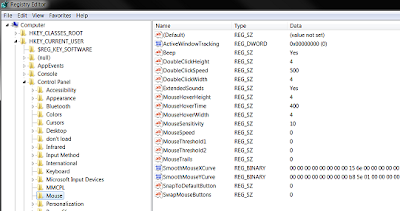
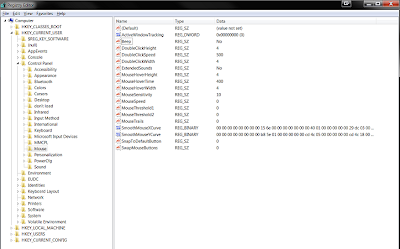
NOTES:
-Requires to be an admin account to run or be able to run with elevated rights (as with most registry based things)
-Run as secured system user via Novell Zenworks to run on a non-admin’s computer and get proper keys if it is a CURRENT_USER key.
-Put REM in front of any line to remark it out and in turn skip it from running.
-Add a Pause at the end of the batch file to leave the command prompt window up and also change @echo off to @echo on (for debugging, testing)
-You can also use other system variables in this batch file too
-Works on any Windows version XP and up; Vista and Win7.




