
Windows 7 / XP – Right Click to Open a Command Prompt

Contributor Icon Contributed by David Kirk     
Tag Icon Tagged: Windows  

This tech-recipe describes how to open a command prompt by right clicking on a folder in explorer. The tutorial has been updated to include information about Windows 7 as well.


Many of us command prompt guys still like to drop to the command console for particular tasks. Executing cmd.exe from the RUN box still forces you to navigate to the particular folder in question. Wouldn’t be easier to just right click on a folder to open a command prompt in that particular directory?

Windows 7 Systems —

1. Select the folder you want to open in the command prompt
2. Right-click on it while holding the Shift key
3. Select Open command window here
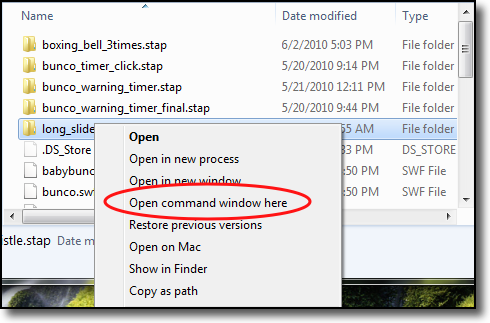
how to open command prompt in windows 7 by right clicking

XP Systems –

Manual Method:
(This requires editing your registry. If you are not familiar with registry editing, this isn’t for you… so skip to the easy method below)
1. Open regedit
2. Navigate to HKEY_LOCAL_MACHINE/Software/Classes/Folder/Shell
3. Create a new key called Command Prompt
4. Your default value should be Command Prompt Here
5. Create a new key called Command under the Command Prompt key
6. Your default value should be cmd.exe /k pushd %L

Your popup menu when you right click on a folder will now contain an option called Command Prompt Here which will open a command prompt in the selected folder.

Easy Method:
Microsoft also has developed this ability into one of its powertoys.


12 Comments -


  1. Harry Broekhof said on January 28, 2009

    Works like a charme! Thank you.

  2. Kevin said on March 26, 2009

    Current PowerToys page:
    http://www.microsoft.com/windowsxp/downloads/powertoys/xppowertoys.mspx

    Specifically, the “Open command window Here” tool.
    Cheers.

  3. DellaMedia said on June 15, 2009

    Works Great! Simple and very effective!

  4. B.Naresh Naidu said on May 22, 2010

    I want to call from my phone to others using Blootooth. How it possible? please give me answer.

  5. Jineeshjohn said on September 12, 2010

    It worked . Thanks

  6. Radhe said on November 11, 2010

    Thanks for the simple approach!

  7. Bhimsen443 said on March 5, 2011

    Nice one… thanks!!!

  8. Senseifibonacci said on March 10, 2011

    if you press shift + right click in windows 7 the open command prompt also apears.

  9. Senseifibonacci said on March 10, 2011

    Edit: only works on your desktop

  10. Gareth said on March 28, 2011

    A slightly better solution is as follows:

    cmd.exe /k “pushd “%L”"

    This will allow the handling of directory names with embedded spaces

  11. MrZoolook said on September 14, 2011

    Another even more old-school method would be to use:
    cmd.exe /k cd /d “%1″

  12. MDE said on January 2, 2012

    Works perfectly, thanks! The XP method works in Windows 7 too, but then you need to use HKEY_CURRENT_USER/Software/Classes/Folder/Shell
    I had to create the Folder and Shell and subsequent keys.


RSS feed for comments on this post. TrackBack URL

Leave a comment -



