

By default, WLM will store all your emails in one specific folder on your C drive. However, as you receive more and more email, you may run into space issues if you keep them in this default place. This post will show how to move all emails stored by WLM 2011 to another drive or location.
WLM typically stores email in the “C:\Users\User name\App data\Local\Microsoft\Windows Live Mail” folder. If this folder is taking up too much space, you can change this default location.
1. Launch WLM 2011.
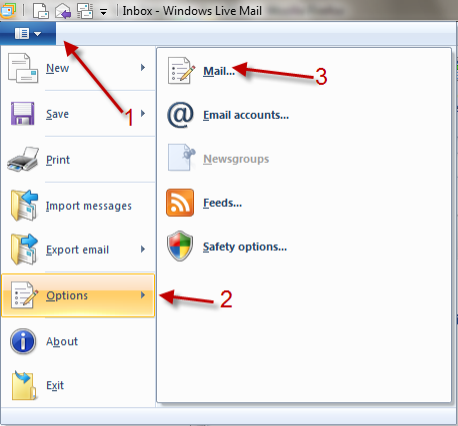
2. Click on the blue button -> Options -> Mail…
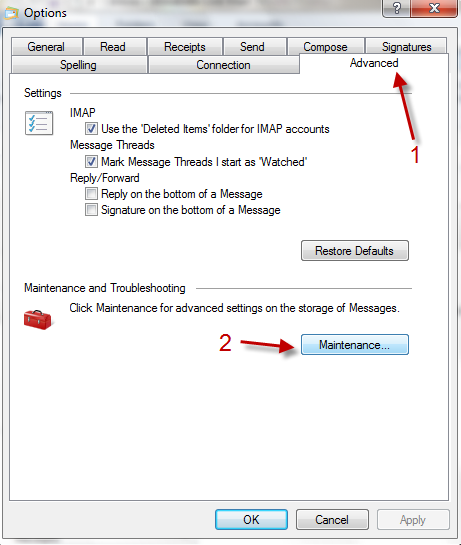
3. In Options window, go to Advanced -> Maintenance…
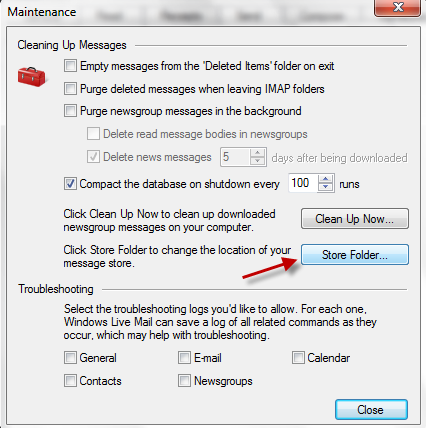
4. Click on Store Folder…
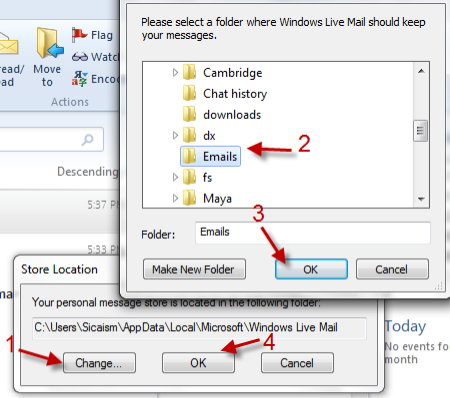
5. In Store Location window, click on Change, point to your new folder -> OK -> OK.
6. Shut down WLM 2011. After that, your emails will be moved to the new place.
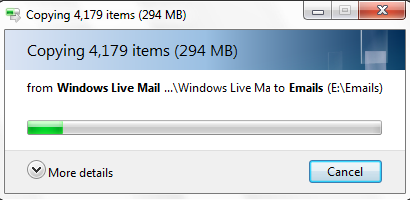
7. Launch WLM 2011 again when the moving process is completed.




