

Most ripped videos will come into iTunes into the Movies category. This tutorial will show you how to change the category so it will appear correctly in your iPhone, iPod, or AppleTV. This technique works in all versions of iTunes including 8, 9, and 10.
Editors note: This technique continues to work for the most recent version of iTunes. I just updated the directions for iTunes 10.6.1.
No matter the original source, it seems that almost all videos are placed into the Movies category by iTunes. When trying to view the clips in an iTunes synced device, this is painful.
Luckily, the fix is pretty easy.
First you need to open the Get Info dialog box in iTunes. You can do this in multiple ways:
– Right-click (ctrl-click) on the file and select Get Info
– Select the file and click CMD+I
– Select the file and click Get Info from the File menu

From the dialog box that opens hit the Options tab. Under the Media Kind dropdown box, select TV Show
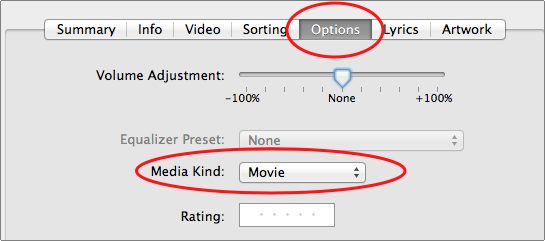
Click OK to finish.
In the above example, my MASH rip will now be listed under my TV Shows in my iPhone and AppleTV.




