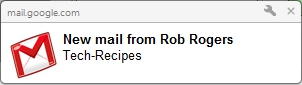
If you are a Gmail on Google Chrome then you have all you need to receive desktop notifications for new email and/or chat messages. Here’s how to enable them so it will be easier to know when someone is talking to you.
1. Go to Gmail and login to your account.
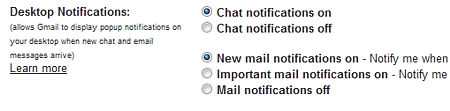
2. Under General, go to the Desktop Notifications section.
3. Select the Chat notifications on radio button, then select either the New mail notifications on radio button or the Important mail notifications on radio button (if you only want to be notified of important stuff and not all of them).
4. Click the Save changes button.
The Desktop Notification will appear on your screen when new messages come in.