

While browsing the internet, some users may have tons of tabs open simultaneously. In this case, stacking similar tabs can help you manage tabs easier. This tutorial describes how to stack or group tabs in Opera 11. How to unstack/ungroup tabs is also described.
Note: Works on Opera 11 and above.
This is an example of non stacked tabs:

Stacked tabs with a small arrow:

Hovering mouse over it and you can see all stacked tabs (thumbnails preview):
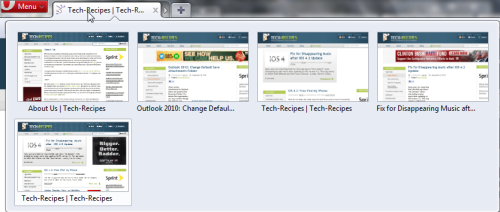
Here is how to stack/group tabs in Opera 11:
1. Left click and hold on a tab. Drag the tab over the other tab, release the mouse and your tabs will be stacked.
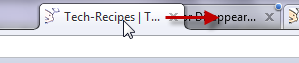
2. To see all tabs as normal, click on the small arrow.

Tab stacking in expanded mode:

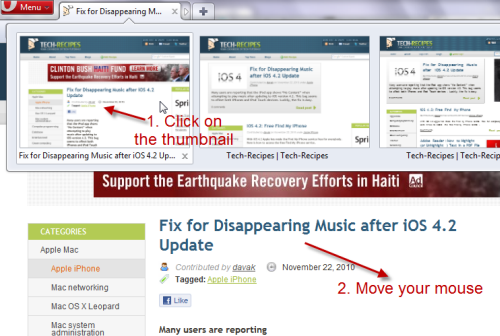
3. To switch between tabs in a stack, just hover your mouse over the stack, click on the thumnail of the webpage you want to view and move your mouse to webpage’s area to close thumbnails.
To unstack/ungroup tabs:
1. Right click on a stack.
2. Choose Tab Stack->Unstack All Pages.

3. After that, all tabs will be display in normal mode.
