
Windows Live Mail 2011: Change Font when Reading Emails
If you do not like the default font used when reading emails in Windows Live Mail 2011, this tech-recipe will show how to change it. You can change both the font face and size.
1. Launch WLM 2011 and log into your account.
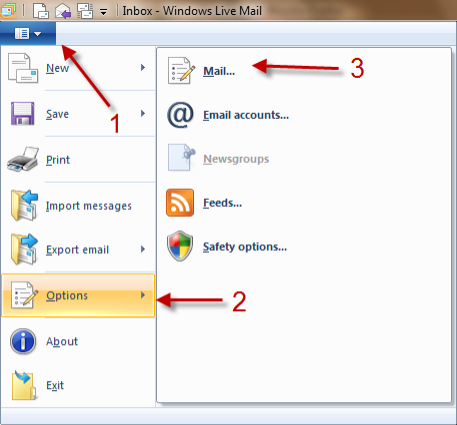
2. Click the blue menu button, choose Options->Mail…
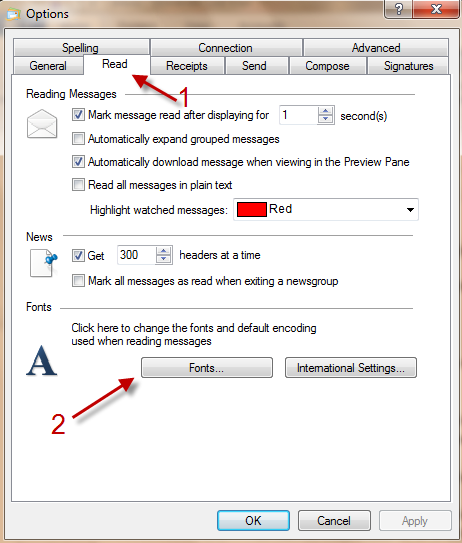
3. In Options window, switch to Read tab and click on Fonts…
4. The Fonts window will pop up. You can change fonts in Proportional font and Fixed-width font. You can also change the font size and encoding in this window. When you have done, hit OK.
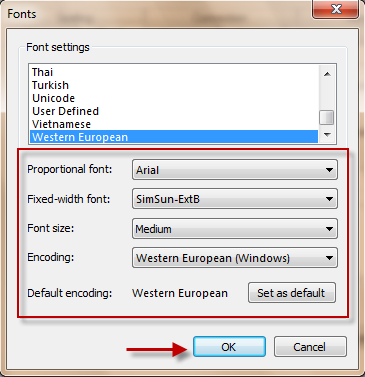
5. Hit OK again in Options window to save settings.


Altoster said on March 13, 2011
Followed the steps, it doesn’t work on my laptop using Windows 7. It actually was working but stopped possibly after downloading some updates.
Anonymous said on March 13, 2011
In this case, you may want to install a clean install of WLM. The updates usually messes the settings up.
You may also want to report bugs back to Microsoft :)
Mike Maas said on October 11, 2011
Your greyed-out lettering is too faint for us to see easily. I wanted something bolder. You don`t seem to offer Bold, so I chose Arial Black, hoping that`ll be clearer than Arial. It hasn`t changed anything, but maybe I`ve got to Restar ( though you don`t say so )t
Mike Maas said on October 11, 2011
Hm. Arial Black appears in the text of messages, but in the opening pane where each line lists a message, most of the lettering is still that faint misty grey.
So difficult to get help from Microsoft. Any ideas what I could do next ?
I click for RSS feeds and get some message about XML files not having text info. This is PhD stuff.



