
Zune Software: Reimport full collection (audio/video/pictures)

Contributor Icon Contributed by Jimmy Selix  
Tag Icon Tagged: Zune  

This recipes explains how to reimport your collection in the Zune software. If you delete a song/video/photo, you cannot add it by just removing the folder and readding the folder in the Settings > Collections screen.


If your like me and mess around with your Collection in the Zune software, you at some point probably want to delete all of your collection and in turn reimport it or had deleted a few songs you wanted to reimport.
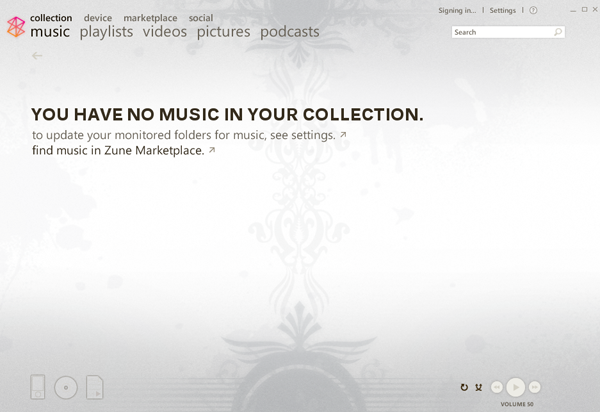
However, just by removing the folders from the Settings > Collection and then readding the folder does not allow you to reimport the songs since the delete is recorded in the Zune collection/store file.

To reimport your media, you need to remove the ZuneStore file.

1. Close the Zune software, make sure its not open or you will get Cannot Delete, File is in use errors.

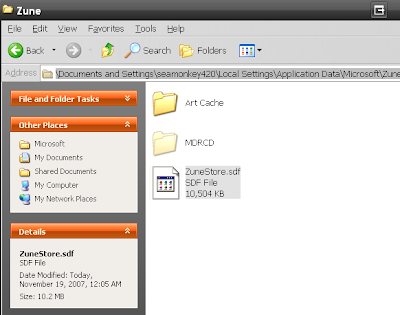
2. Open up Windows Explorer or My Computer and go to C:\Documents and Settings\Your Login ID\Local Settings\Application Data\Microsoft\Zune

Here you will see ZuneStore.sdf file; rename it to ZuneStore.sdf.orig or just delete it.
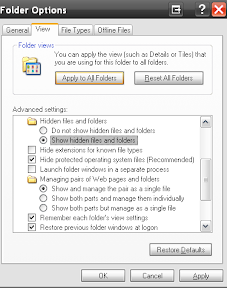
(if you can’t see the local settings folder, you will need to turn on the “Show Hidden files/folders” option in Windows Explorer, go to Tools > Folder Options > “Show Hidden files and folders” ).
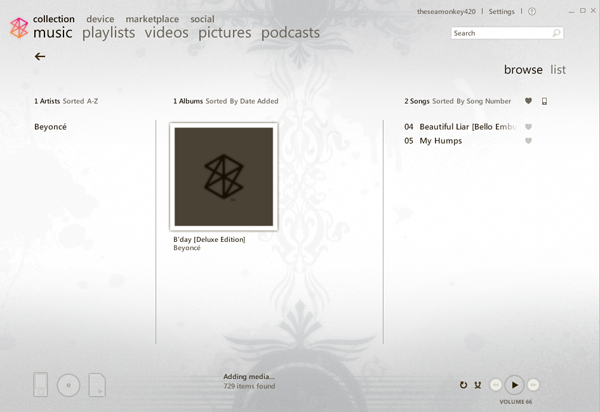
Now reopen the Zune software and voila! You should start seeing your media being readded immediately. Your collections settings/folders should still be saved too.
NOTE:
-Also, there is now an option in Settings > Collection > Restore Files previously deleted from collection to do this same thing.

-Any metadata changes (song/artist/album art) will be saved since the software embeds this info into the files themselves.


12 Comments -


  1. ileana said on October 16, 2008

    THANKS! THANKS! THANKS!!!!!!!

  2. ted said on December 12, 2008

    thank you!! this helped a lot

  3. Ralph said on December 20, 2008

    I can’t seem to find a answer to this question: I load a few CD and they are loaded as unknown cover with the number of songs. How do I get the name of the CD artist and the name of the songs. Please help me.

  4. Anonymous said on April 12, 2009

    i will like to how to delete pictures of the zune thank you

  5. audio visual said on November 7, 2009

    zune software is well explain in the blog.Cheers

  6. Kim said on November 20, 2009

    Thanks! This was exactly what I needed.

  7. Anonymous said on March 6, 2010

    i can’t fine the file that i have to delete, when i pressed restor prv. deleted files it doesnt restore, nd i cant even find the folder: C:Documents and SettingsYour Login IDLocal SettingsApplication DataMicrosoftZune help?

  8. guest said on August 29, 2010

    Thanks!! This is a huge help!

  9. Jan Karlsbjerg said on November 17, 2010

    Killer tip!

  10. Jan Karlsbjerg said on November 20, 2010

    I discovered a side effect: Your podcast subscriptions disappear too. After the software is done checking through the folders etc. it will have found all your music and video again, including the podcast episodes. But they’re just music and video files. You’re no longer subscribed to the podcasts.

    So you have to resubscribe to the podcasts (easy, just one click per podcast) and then change any defaults/settings for your podcasts (how many episodes to sync, etc.) and possibly cancel the download of hundreds of files (if you choose to save all unheard episodes and any of your podcasts have large feeds that contain many of their episodes, not just the last few)

  11. Anonymous said on April 2, 2011

    After a few hours of frustration….and finding this article…..I didn’t realize the RESTORE button. OMFG

  12. Sarahfrog said on April 28, 2011

    If you only need to readd a few albums or songs, just rename the file, it will add it back.


RSS feed for comments on this post. TrackBack URL

Leave a comment -