
Facebook: How to See Wall Posts from All of Your Friends and Liked Pages

By default, Facebook has your Wall set to only display posts on your Wall from Friends and Pages that you interact with most. Unfortunately, you might be missing posts from people or pages that you care about, by thinking that they just have nothing to say. Here’s how to change this. (Note: This will not make changes to the friends and pages that you have chosen to hide from your wall).

1. Go to Facebook and login to your account.

2. Go to the bottom of the Home page (the very bottom, it may take more than one try as the page continues to populate the posts on your wall).

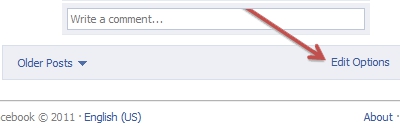
3. Select Edit Options.
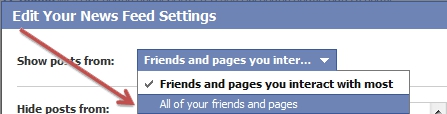
4. Click the Show posts from dropdown and select All of your friends and pages.
5. Click the Save button.


 

About Rob Rogers

Once a prolific author here on Tech-Recipes, Rob has moved on to greener pastures.
View more articles by Rob Rogers

The Conversation

Follow the reactions below and share your own thoughts.

3 Responses to “Facebook: How to See Wall Posts from All of Your Friends and Liked Pages”

  1. February 20, 2012 at 3:02 pm, Margy Judd said:

    This option doesn’t exist on my FB page. When I hit Edit it just shows me who I have asked to HIDE posts from ….I don’t get the option you described above to show posts from “all friends and pages” – is this new in 2012?

    Reply

  2. March 10, 2012 at 12:39 am, Steve F said:

    Same here. I used to receive posts from a page I ‘liked’ but I stopped receiving them at all a couple of months ago. The Edit Options at the bottom of the wall feed just shows who I’m hiding posts from (which is no one) – there are no other options.

    Reply

    • May 02, 2012 at 3:33 pm, Derek said:

      > Ever figure out how to show all?

      Reply

Leave a Reply

You may also like-

Facebook: How do I hide posts by others on my wall?Usually, posts that others posted on your Facebook are personal messages. They may contain sensitive or embarrassing information, and you just want to delete ...


