

Outlook allows the user to add national holidays from multiple countries into the calendar. This is helpful for knowing when you (or your contacts) don’t have to show up for work or class.
1. Open Outlook.
2. Go to the Menu at the top of the screen, click File and select Import.
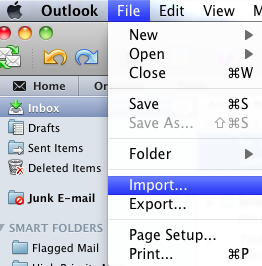
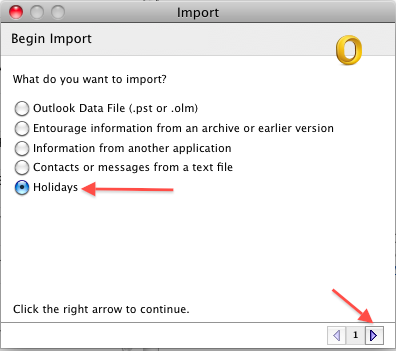
3. When the Import window appears, select the Holidays radio button, then click the right arrow at the bottom of the window.
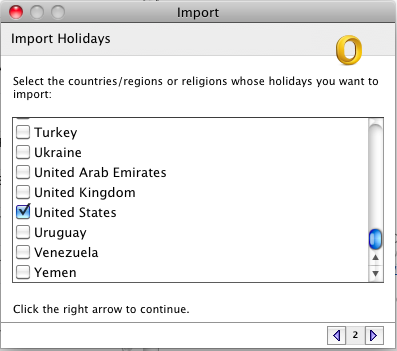
4. Select the country (or countries) whose holidays you want displayed on your Outlook calendar from the list, then click the right arrow at the bottom of the window.
5. Once the import has completed, click the Finish button.
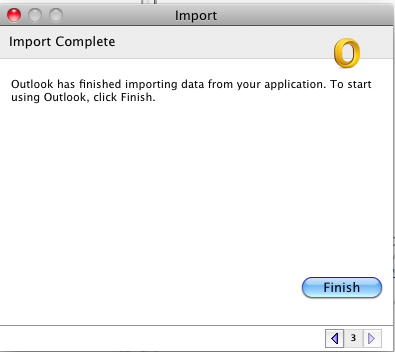
The holidays you selected have now been added to your Outlook calendar.
