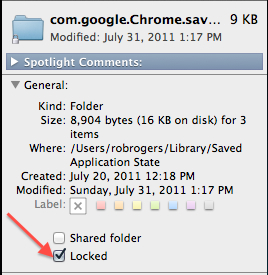
If like using Resume for your other apps but want to greatly improve the the startup time for your web browser, you can disable Resume for Safari and/or Chrome while keeping it enabled for your other applications.
This can be done by either using Terminal or Finder.
To disable Resume for your web browser in Terminal:
1. Close your web browser.
2. To disable Resume for Safari, execute the following Terminal command:
defaults write com.apple.Safari NSQuitAlwaysKeepsWindows -bool false
To disable Resume for Chrome, execute the following Terminal command:
defaults write com.google.Chrome NSQuitAlwaysKeepsWindows -bool false
To disable Resume for your web browser in Finder:
1. Close your web browser.
2. Open Finder.
3. Go to the menu bar, click Go and select Go to Folder.
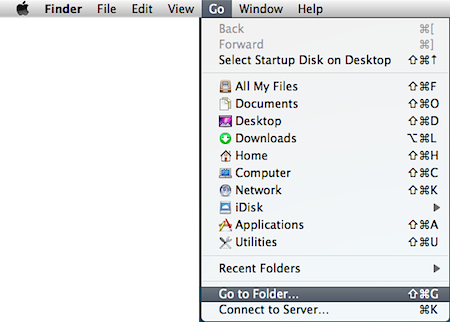
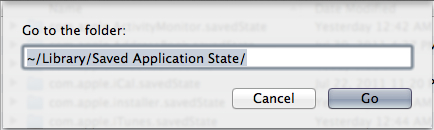
4. When prompted for a location, input the following into the textbox:
~/Library/Saved Application State/
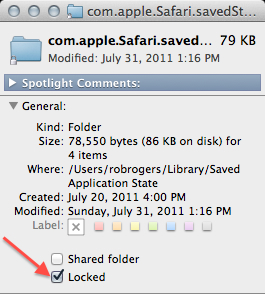
4. To disable Resume on Safari, right-click on the com.apple.Safari.savedState folder and select Get Info.
In the General section, click the Locked checkbox and close the Get Info button.
To disable Resume on Chrome, right-click on the com.google.Chrome.savedState folder and select Get Info.
In the General section, click the Locked checkbox and close the Get Info button.