Do you receive countless “bad” emails from someone that got your address? Maybe you gave your address to them and now regret it, or maybe they got it via some other method. While Gmail has no block functionality, you can keep these troublesome emails from appearing in your inbox by automatically deleting these emails as they arrive.
1. Go to Gmail and login to your account.
2. Go to an email from the sender you wish to block, and open it.
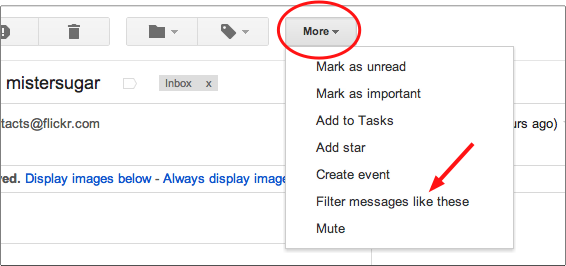
3. Go to the top of the email and use the More dropdown to select Filter messages like these.
4. The sender’s email address will appear in the From textbook of the Create a Filter form. (If you wish to block all email from the sender’s domain then use @sendersdomain.com instead of the sender’s email address where sendersdomain.com is the domain of the sender’s address.)
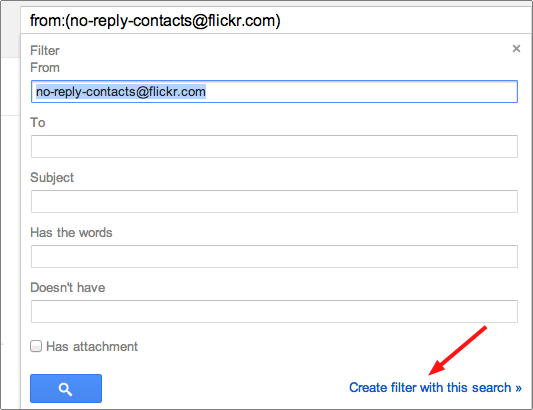
5. Select the Create filter with this search link.
6. Check the Delete it checkbox.
7. If you wish to apply the new filter to clean out existing messages from this user, check the Also apply filter to matching conversations checkbox. If not, leave it unchecked.
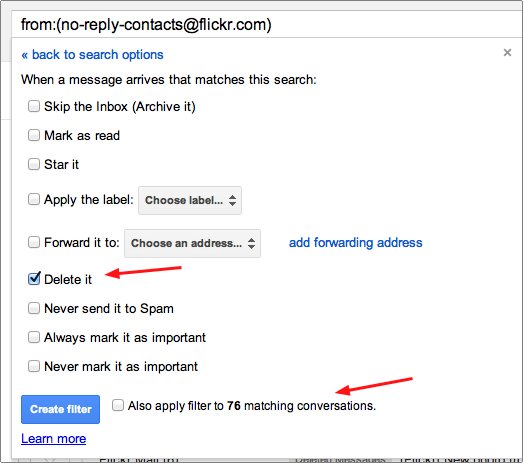
8. Click the Create Filter button.
Your inbox will never have to deal with any messages from this sender again.