How to Play Xbox Live on a College Campus Network
Posted by Aaron St. Clair in Games
I started college in the fall of 2010 with great anticipations of faster internet speeds for Xbox Live. However, it did not work because my school requires me to first register computers on the network. No web browser exists on an Xbox (for now, wink wink) for registration so I needed a workaround. Here is the secret.
NOTE: This fix works on all models and dashboards of the Xbox 360. This fix isn’t really changing anything on your Xbox, it’s simply making the information on your Xbox appear as if it is your computer. The real question as to whether or not this will work for you is how your school’s connection is setup, though, I haven’t had anybody not get it to work eventually.
PLEASE NOTE: This tutorial is for connecting to Xbox Live using an Ethernet cable. I’ve yet to find a workaround for wireless connections. If you figure one out, please post in the comments below.
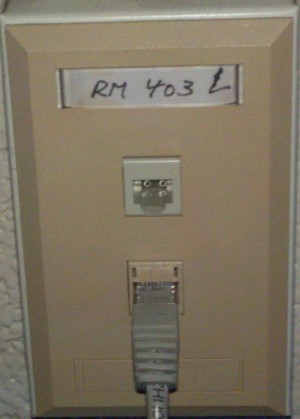
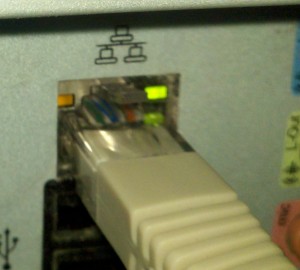
First and foremost, connect your desktop (or laptop) to your school’s network via an Ethernet cable. Do not plug the cable to the Xbox yet. If you unplug and then plug it back into your computer, some settings could get changed and you would have to do the first few steps over again.
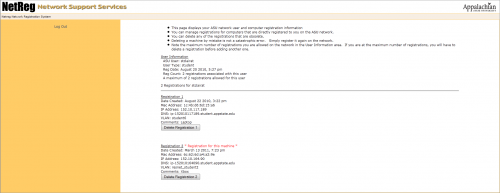
The second step is to register your computer on your school’s network. I am not going to go into detail about this because it is likely different for each campus. Once you are registered, you will probably see a screen similar to this:
MAC Users: Go to the following links, follow what they say and write down the corresponding info. Skip the next four steps.
IPv4 Address: http://www.wikihow.com/Find-Your-IP-Address-on-a-Mac
DNS Servers: http://www.askdavetaylor.com/find_the_dns_servers_on_your_mac.html
MAC (Physical) Address: http://www-dcn.fnal.gov/DCG-Docs/mac/ (Choose your OS from the list)
Subnet: http://www.ehow.com/how_6312220_subnet-mask-address.html
Default Gateway: http://kb.iu.edu/data/ajfx.html
PC Users:
Once you’ve registered your PC on the network, open your Start menu.
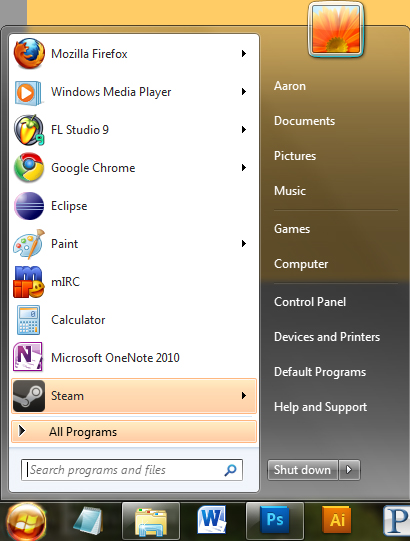
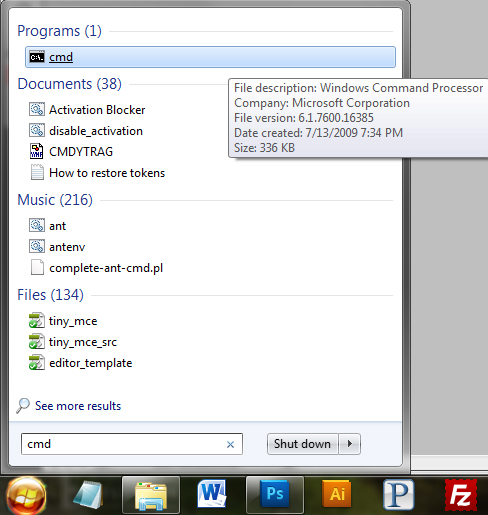
Search for “CMD.” (Without the “quotes”) When you find it, click it.
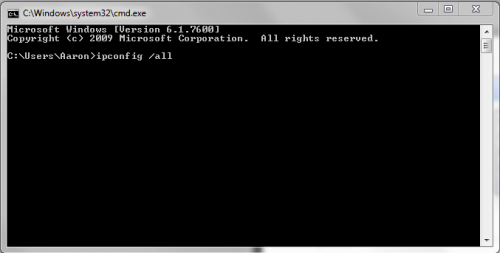
Type “ipconfig /all” (without the “quotes”) into the Command (CMD) Prompt that you opened and hit Enter.
You will be presented with a list of information concerning your computer’s current network configuration. There could be many things listed here, but you’re looking for a section titled “Ethernet adapter Local Area Connection:”. When you find this section, copy down the information highlighted in red.
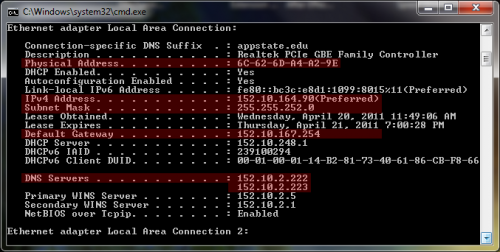
DOUBLE CHECK that you’ve written down the numbers correctly and make sure you’ve labeled them so you don’t get them mixed up.
MAC Users continue here…
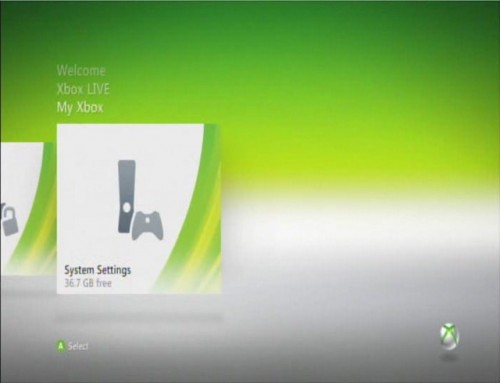
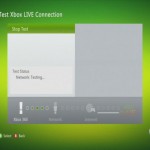
Now, unplug the Ethernet cable from your PC and plug it into your Xbox 360. Turn your Xbox on. Since you’re not connected to the internet yet, I’ll assume you’re presented with a screen similar to this:
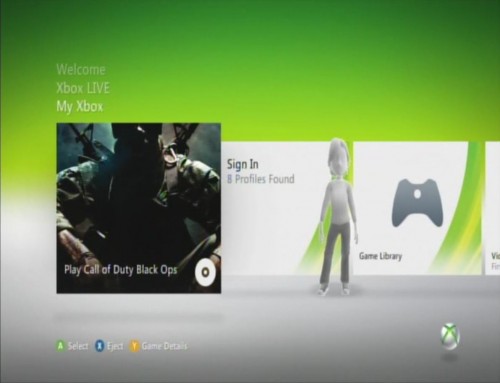
If not, scroll up or down until you get to the My Xbox menu. Press
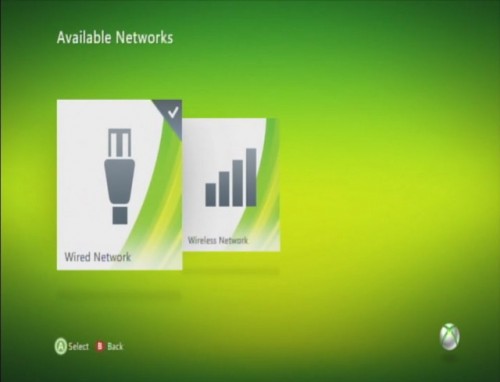
until you get to System Settings. Press
.
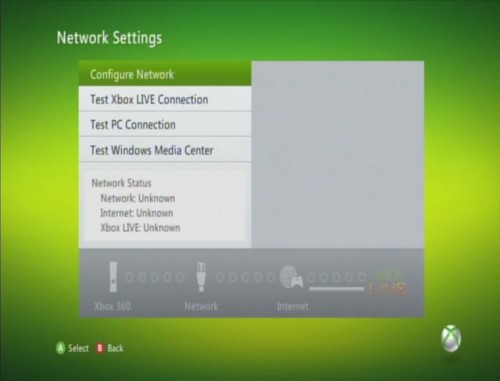
Scroll down to Network Settings and press
.
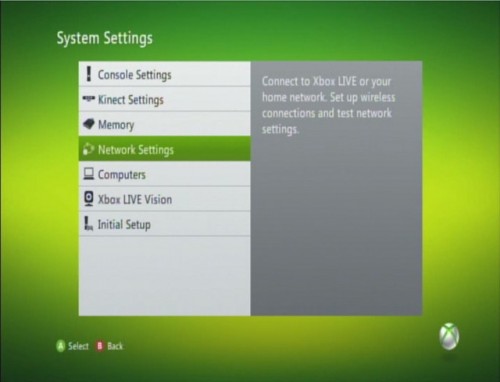
Under the Basic Settings menu, press
on “IP Address, Subnet, Gateway.”
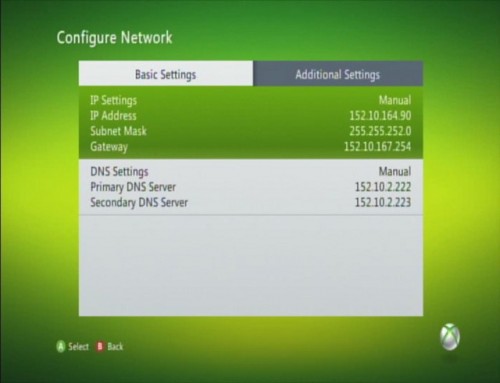
Make sure Manual is selected and press
.
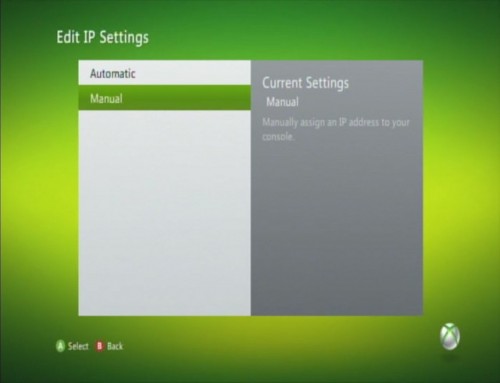
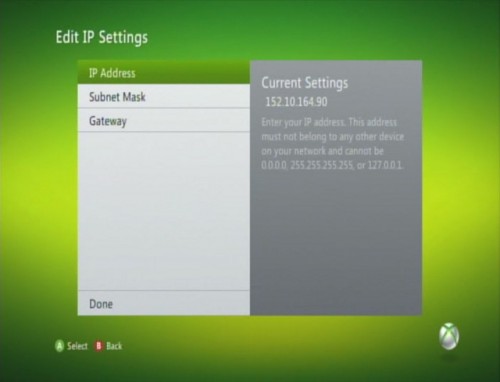
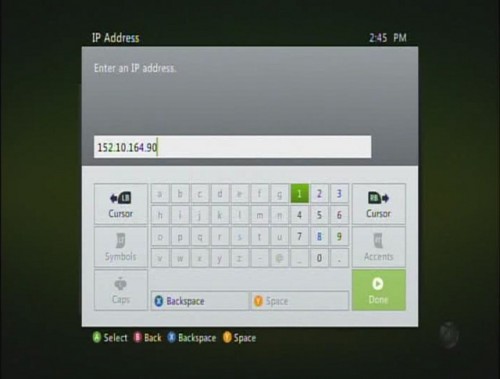
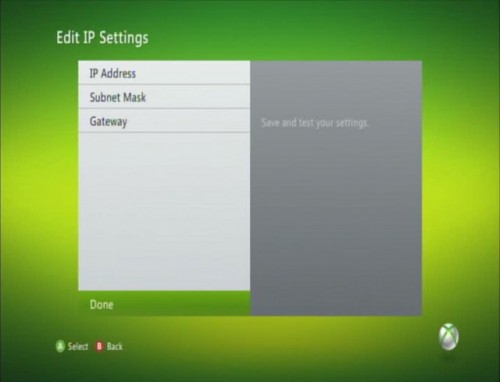
Enter the number you wrote down for “IPv4 Address” from the CMD. Be sure you press
on the
(Done) button.
Go down to Subnet Mask and press
.
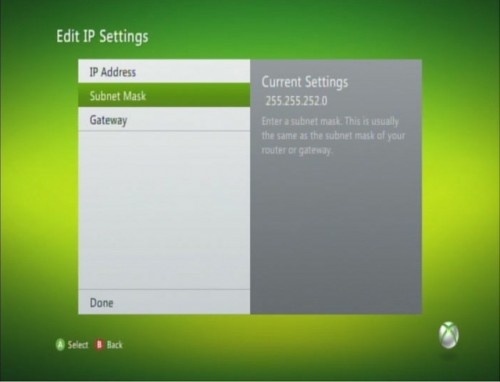
Enter the number you wrote down for “Subnet Mask” from the CMD. You must press
on the
button.
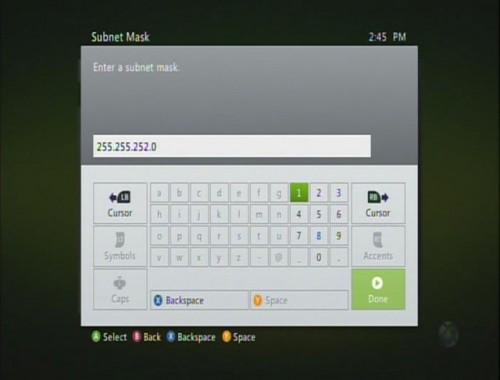
Go down to Gateway and press
.
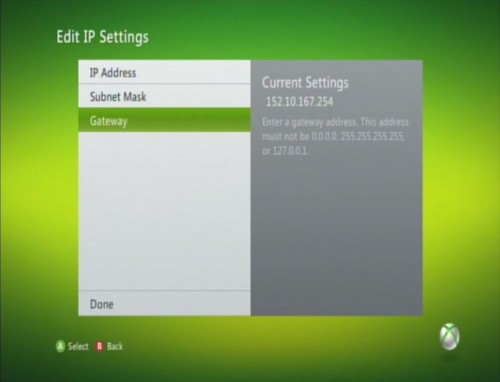
Enter the number you wrote down for “Default Gateway” from the CMD. Once again, be sure you press
on the
(Done) button.
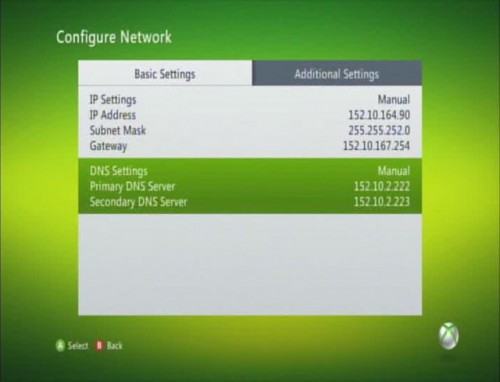
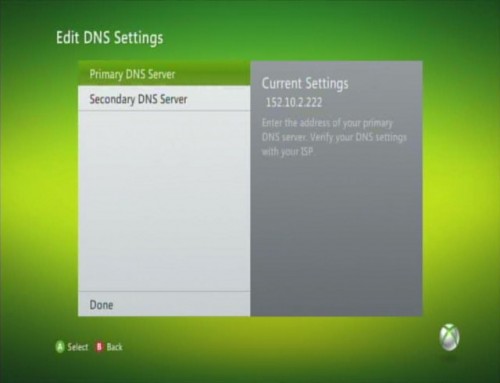
Go to DNS Settings and press
.
Enter the first number you wrote down for “DNS Servers” from the CMD. MAKE SURE you press
on the
(Done) button.
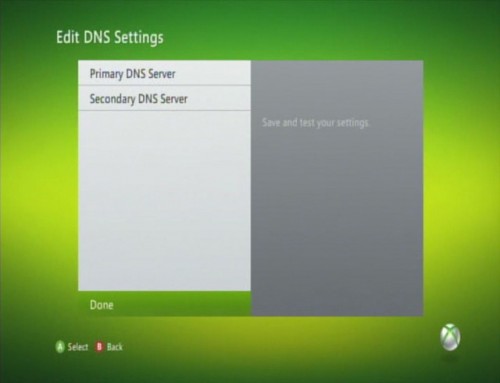
Go down to Secondary DNS Server and press
.
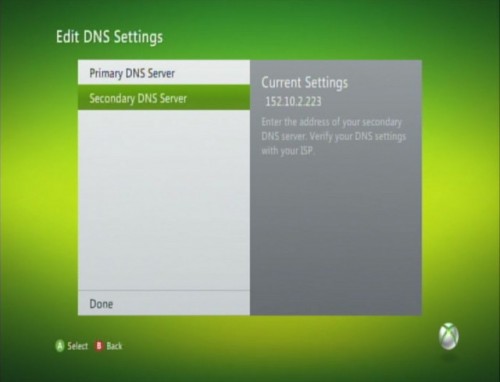
Enter the second number you wrote down for “DNS Servers” from the CMD. You must press
on the
(Done) button.
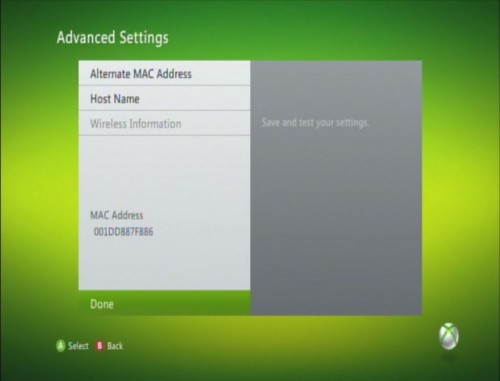
This will bring you back to the Basic Settings menu. Go right to the Additional Settings menu. Go down to Advanced Settings and press
.
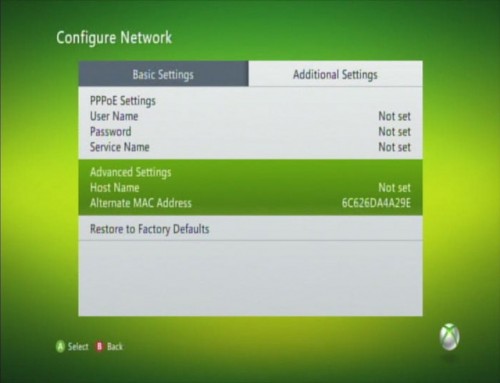
Press
on Alternate MAC Address.
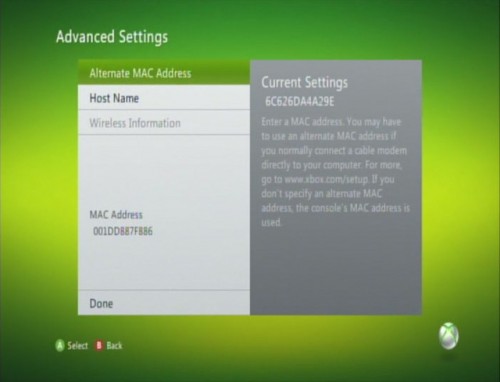
Enter the alphanumeric address you wrote down from the CMD. NOTE: On the CMD it’s listed as “Physical Address”. It’s vital to press
on the
button.
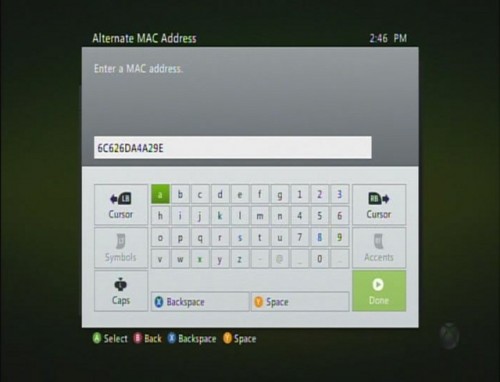
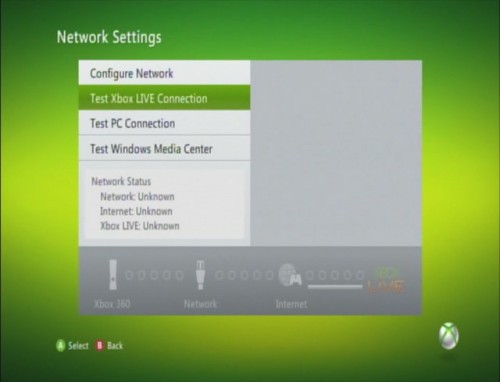
Now press
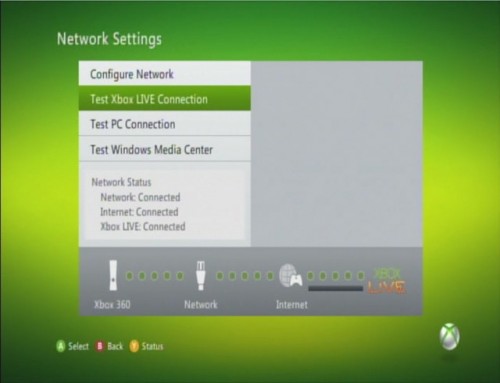
to return to the Network Settings screen. Go down to Test Xbox LIVE Connection and press
.
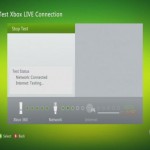
Three things will happen now.
- 1. Your Xbox will test for a connection to a Network. If this passes then you know everything you entered worked. If it doesn’t pass then you need to double check your credentials.
- 2. Once the Network connection is established your Xbox tests for a connection to the Internet.
- 3. Finally, your Xbox will test to make sure it can connect to Xbox Live.
Once all three pass you’ll be fully connected to Xbox Live.
Troubleshooting
On rare occasions, while testing for your Network, your Xbox will give you a DNS Error.
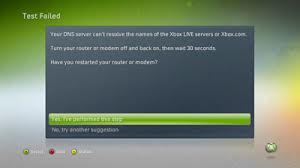
To fix this error, try entering Google’s free DNS Servers. (Primary: 8.8.8.8 Secondary: 8.8.8.8 or 4.4.4.4)
This is the only problem I’ve ran into thus far. If you have any other error PLEASE leave a comment below; I will respond ASAP.
About Aaron St. Clair
View more articles by Aaron St. Clair
The Conversation
Follow the reactions below and share your own thoughts.


April 21, 2011 at 11:08 pm, Rob Rogers said:
Great article! I do believe that this is one of the largest tech-recipes ever.
April 22, 2011 at 2:28 am, asdfadsfji3;asdf said:
so this will work “if” your campus has an open NAT policy. on some campuses, they have one external IP servicing several internal networks….so you can have the case of multiple XBoxes routing through a single external IP, which will cause lots of issues.
April 22, 2011 at 11:35 am, Anonymous said:
Excellent point. College networks are not very uniform in their design. However, many require registration and these work arounds that are described here. Certainly, however since there are so many configurations, these steps may not get everybody connected…
April 21, 2011 at 11:06 pm, Chris Luongo said:
Awesome job Aaron
April 23, 2011 at 12:04 am, Zzzza said:
An alternate yet more advanced method (but it works for wireless) is to change the MAC address of your computer to match that of your xbox, authenticate, then match the xbox’s settings to your computers. Make sure your computer’s MAC is changed, then your xbox should work. To the network they should look like the same physical machine if they use MAC based authentication.
April 23, 2011 at 12:05 am, Zzzza said:
Or if your computer has two ethernet adaptors, there are ways to bridge connections so that the Xbox’s traffic goes through your computer’s connect, and doesn’t need to auth.
April 23, 2011 at 1:06 am, Anonymous said:
You will get in hot water with your campus IT department when they figure it out.
April 23, 2011 at 3:33 am, freebullets said:
Google Alt DNS IP is 8.8.4.4.
April 24, 2011 at 5:53 am, Brianhibbie said:
This works great for playing Xbox in hotels!
July 22, 2011 at 9:31 pm, razor said:
also a neat piece of software called wifi router manager will allow you to output your internet connection as a wifi signal.
August 20, 2011 at 6:57 am, Billy Hornet said:
Those type of software ends up taking a huge dump on your system registry, thereby disabling your WLAN.
You are better off doing it manually.
August 20, 2011 at 6:50 am, Billy Hornet said:
I have the newer version of the xbox (xbox s), that is capable of receiving a wireless connection. What i did instead of using this method or bridging a connection was using Internet Connection Sharing (ICS). All you need is a ethernet adapter (duh), internal wireless adapter or a usb wireless adapter, for those without laptops.
Connect your computer to the school network using ethernet port, by logging in your username or what have you.
Next, go to Network Connections. Right click on the ethernet adapter and go to properties, then sharing.
Enable ICS
Next, using your wireless adapter go to set up a connection or network. Then go to setup a wireless ad hoc and assign a SSID, and a password.
Finally, on your xbox go to network connection>>wireless connection>> and connect to the network you created.
If everything is done correctly, you will be able to connect to xbox live and browse the internet at the same time.
>>Note: Ad hoc is a temporary network that closes whenever the xbox is disconnected.
October 19, 2011 at 8:40 am, andrea said:
hi..i was just wondering..i did everything you said to do here and it connected me..but then it said it was updating my xbox. it did it a few times and then said that there was an error or something and i couldnt be connected. how do i fix this?
January 18, 2012 at 9:41 am, Aaron St. Clair said:
I have neglected to respond to comments on here… Sorry about that everyone.
@asdfadsfji3;asdf Your campus does not need an open NAT policy. Mine has a Strict policy and it still works. The IP address is the same as your computer, so you can’t use Xbox Live and your PC at the same time (in some cases.)
@Everybody else… This is just one method of bypassing the restrictions. The other suggestions here are great as well! As Billy Hornet said, using software such as a router manager will bog down your registry.
@andrea Something probably glitched in the download process of your system update. If possible, update your xbox at a different location, then try reconnecting using this method.
August 31, 2012 at 4:29 pm, Tyler said:
Hey man thanks for posting this my only question is will this process work with a new xbox and the new updates ? im at a branch campus of psu up in erie by the way, thanks.
September 04, 2012 at 1:48 pm, Aaron St. Clair said:
This process works on any 360 and with any dashboard.
September 07, 2012 at 4:03 pm, Rick said:
Hey, followed the steps exactly, I still get an IP Address error everytime I start up the network test. Whats Wrong?
September 08, 2012 at 7:08 pm, Aaron St. Clair said:
What exactly does the IP error say? There are multiple IP error screens possible.
September 08, 2012 at 9:58 pm, Andrew said:
Ive enterered all the information correctly because the xbox 360 connects to the network. However, the network will not connect to the internet! Any solutions?
September 10, 2012 at 1:07 pm, Aaron St. Clair said:
What error are you getting?
September 10, 2012 at 11:44 pm, Andrew said:
The xbox connects to the network but the network will not connect to the internet.
The error status report is as follows
W:0000-000B
X:0000-002D
Y:0000-0000
Z:0000-0000
ID:0004-0001
L:8015-0002
Q:8007-0435
T:Wired
A:150.216.78/255.255.255.0
G:150.216.78.254
D:150.216.1.252/150.216.1.250
Im no tech guru but i have also tried using different Ethernet cords and that has not worked either.
September 11, 2012 at 2:31 pm, Aaron St. Clair said:
Look at A: 150.216.78/255.255.255.0
There’s supposed to be three periods in the IP there, with four sets of numbers. You’ve only got 3 (150.216.78.???)
September 14, 2012 at 3:32 am, Andrew said:
> My bad that is a typo. A correctly reads 150.216.78.62/255.255.255.0
September 21, 2012 at 5:03 am, Tyler said:
I tripled checked that I entered the correct DNS and still got the DNS error. Then I used the Google ones and the error remained. Do you have any reccomendations on what to do?
September 24, 2012 at 9:50 am, B said:
Hi,
Thanks for the guide first off, the most useful one I’ve read. In university halls i’m trying to connect my xbox 360 to the ethernet port in the room. Each room has their own assigned ethernet port. A guy in one of the rooms just had to change his mac address and his was working straight away.
Mine however doesnt seem to want to play ball so easily. I have changed the alternate mac address to the same as my PC. But then I get the error “IP Address Error” there is no codes or anything else provided. In my “configure network” section of the menu they are both automatic (I have tried changing them to manual but get the same error) but the DNS Settings are the only section that doesnt get completed. I’m just left with 0.0.0.0 in both primary & secondary servers.
I tried the 8.8.8.8 suggestions above but it didnt seem to work.
Any help on this would be greatly appreciated
November 07, 2012 at 3:57 pm, Aaron St. Clair said:
> You need to register your computer on your network, and run /ipconfig as mentioned in the tutorial. I’m assuming the ethernet port has been assigned a static IP, and setting your xbox to manual will not pull the DNS. You need to get all of the information from /ipconfig to ensure your xbox can imitate your computer successfully.
September 27, 2012 at 8:25 pm, Katie said:
My Xbox will connect to the network but not to the internet, all it says is that I have an Internet Error and that I should reconnect my power. What should I do?
November 07, 2012 at 3:54 pm, Aaron St. Clair said:
Sorry, somehow overlooked this one. For this, can you hook up a laptop or other device with an ethernet plug to the exact same setup you’re hooking up your xbox too? I.E. If you’re running a cable from your router to your xbox, run the same cable from the same port to your laptop and ensure you can connect through the LAN port to your network (disabling your wireless adapter will ensure you’re connecting through the LAN port). If your laptop is able to get online, verify that you’ve entered all of the information gathered from /ipconfig into the xbox EXACTLY as it was on your computer. If the laptop does not get online, then you know the problem lies within the router, not giving an IP to that port.
October 29, 2012 at 11:20 pm, Dylan said:
Great article…..any way to do it with wireless?
October 31, 2012 at 7:53 pm, IT1 said:
> If you have to authenticate with a browser on the wireless copy the mac address of your xbox wireless nic to that of your laptop wireless nic (or vice versa)
This can be done in your network adapter properties to spoof your mac.
Authenticate, shut the wireless off on your laptop and test the connection with your xbox and see if it connects.
Be aware that some campuses may need ports to be opened by the IT staff
(I work as an IT staff for a college, I fight for the users
it becomes a nuisance but its the only way I have found out)
November 01, 2012 at 4:44 am, Aaron St. Clair said:
This is a very good tip. I’ll have to try this out on my campus and see if it works! It’d be great to finally have a wireless solution to this as well.
November 07, 2012 at 7:41 pm, trev said:
ive entered in everything correctly, the xbox connects to the network and internet, but it fails when it gets to xbox live…it doesnt give me an error either, it just sends me straight to troubleshooting.
any ideas?
November 07, 2012 at 10:37 pm, Aaron St. Clair said:
Troubleshooting doesn’t give you an error? It should give you some kind of suggestion as to what the problem is.
Things to try:
1. Reset your network settings to default by going to Configure Network > Additional Settings > and choosing Reset to Factory Defaults. Then turn your xbox off, back on, and re-enter all the information.
2. Go here: http://support.xbox.com/en-US/xbox-live/connecting/cant-connect-to-xbox-live-solution Choose Wired, then, at the bottom, click No on “Did this resolve your issue?”. On the next screen, choose No again. Then choose Xbox Live Failed (the third picture). The troubleshooting window should give you one of these errors listed on this screen (ICMP, MTU or possibly an XBL issue). Follow the instructions on this page for the issue you get when troubleshooting.
November 08, 2012 at 12:29 am, Josh said:
My computer does not have the numbers for the Gateway or the DNS servers? Any clue why?
November 08, 2012 at 3:43 am, Aaron St. Clair said:
Hmm that’s odd. If you don’t mind, can you post your IP? I don’t think any elite hackers will be viewing this topic… The IP will allow me to determine if you’re being assigned an external IP (i.e. your campus is running a dedicated T3 and assigning external IP’s for each connection, instead of routing each through a “router” and assigning an internal network IP). If this is the case, I’ll have to dig around and find a workaround. You could try using 192.168.0.1 or 192.168.1.1 as your default gateway. I’m not a network engineer, and without the use of some sort of internal networking router, I may not be able to help, but I’ll definitely try!
November 09, 2012 at 2:38 am, Jack said:
You are a legend! i wasn’t going to buy an Xbox for uni because everyone said they couldn’t connect it, but seeing this made me take a chance on it and it worked! Thanks a lot dude, makes staying in touch with friends at home much easier.
November 09, 2012 at 2:13 pm, Aaron St. Clair said:
Haha I appreciate it. Glad it worked for you!
November 09, 2012 at 6:31 am, edian said:
Hi, my campus has 802.1 x authentication, i tried doing this but it didn’t work. Is it cause of that 802.1x thing?
November 09, 2012 at 2:22 pm, Aaron St. Clair said:
I’m not too experienced with 802.1x authentication. We covered it in a cryptography course I took, but that’s about it. After researching it a bit for you, I found this “The supplicant listens on this address, and on receipt of the EAP-Request Identity frame it responds with an EAP-Response Identity frame containing an identifier for the supplicant such as a User ID.” This means the xbox would need to be able to “respond” with an EAP-RI frame that contains a username. The Xbox has no protocol for storing this username, so since the username/pass has to be sent every time a connection is made with 802.1x auth, it very well may be the issue. This issue may be why a few others cannot connect either.
At what step does your Xbox fail to connect to Xbox Live?
November 10, 2012 at 3:04 am, Jordan said:
I’m having the same problem with wireless 802.1x username and password. When I test my connection on the Xbox, the problem comes during the first “network” test and gives me a “Can’t connect to Wireless Network” error.
November 11, 2012 at 4:59 pm, Aaron St. Clair said:
Ahh, ya’ll are having problems doing this wirelessly. That makes sense. I have yet to find a way that works for wireless. A few comments have surfaced that use the method of changing the MAC address to confuse the network, but vise versa from this tutorial. For wireless, try configuring your laptop’s MAC address to be the same as your Xbox’s (can find the Xbox MAC under Advanced Settings in network configuration) and reregistering your laptop on your school’s network. Then use ipconfig /all to find the correct IP/DNS/Sub on the laptop, and place those into the xbox, without changing the Alternate Mac Address on the Xbox.
November 14, 2012 at 4:41 am, ryan said:
My Default gateway has letters listed as well as numbers. The xbox does not allow me to enter these. What to do?
November 15, 2012 at 5:50 pm, Aaron St. Clair said:
> Umm… I’ve googled this and I can’t find anything referring to numbers being in a a gateway. I’ve never heard of such. Are you positive it’s listing these letters for defualt gateway? Do these letters span outside the range A-F? Ensure you’re looking at information about IPv4 and not IPv6.
November 16, 2012 at 9:35 pm, Tyler said:
i only get 1 DNS server in cmd and the alt google ones do not work
November 17, 2012 at 12:24 am, Aaron St. Clair said:
Try entering the 1 DNS listed for both primary and secondary on your console.
November 26, 2012 at 5:04 am, Tom said:
Wow man than you so much. Worked without a htich!
December 20, 2012 at 9:18 pm, JohnA said:
Hi, I did everything you said and it connected to the “network” but then when trying to connect to the “internet” i get “MTU error.” Any way around this that you know will allow me to get on?
Thanks man!
December 21, 2012 at 4:21 am, Aaron St. Clair said:
Are you on a campus or do you have access to the network hardware? If so, the MTU can be changed from your router configuration. If not, try running this program: http://www.dslreports.com/drtcp Set your MTU something between 1500-1700.
January 09, 2013 at 4:21 pm, JOHNA said:
I am on a college campus and do not have access to network hardware. I clicked this link you sent me and downloaded it… http://www.dslreports.com/drtcp. I have no clue how this works? Can you help me so I can figure out how to change the MTU settings on my network so I can access xbox live? Thanks again man!
January 09, 2013 at 6:19 pm, Aaron St. Clair said:
It may not work since you don’t have access to the hardware, I was just suggesting trying it to see. You simply change the value in the box labeled MTU using that program. If your campus is using MTU restrictions, then the only other option I can think of is to hook up a router in your room, disable DHCP and then change the MTU using that program on the new network your router created.
January 09, 2013 at 4:49 am, ???? said:
im still having trouble..
January 12, 2013 at 6:34 pm, Josh said:
Cheers for this easy step by step guide i have worked it for a while whilst being on campus and it works great. However i have shown a couple of my mates and now when someone is online no one else can go online yet it says that network and internet is connected just not xbox live …. any ideas how i can resolve this?
Thanks for your response!
January 12, 2013 at 6:37 pm, Aaron St. Clair said:
Sounds like you’ve setup all the consoles on the same IP address. If you have multiple people doing this on the same network, each IP address must be different. Have them all do the full procedure of the /ipconfig and get their own IP address from the computer.
January 17, 2013 at 7:56 pm, bobby said:
is there a way to allow connection to a network that you must enter your user and pass to sign into the network?
January 18, 2013 at 4:33 am, Aaron St. Clair said:
I’m assuming you sign into this network via a webpage? I’ve got two suggestions to try. First, try using the new Internet Explorer app on the Xbox to sign in to the network. If that doesn’t work, the second option is to connect your computer to the network, then sign into the network using the webpage. Once you’ve signed in, follow the /ipconfig instructions in the tutorial, enter them into the xbox and plug the ethernet cable into the xbox. That should trick the network into thinking your xbox is the registered computer.
January 28, 2013 at 5:17 pm, Allison said:
This helped so much thanks!
February 05, 2013 at 11:18 am, Claire said:
This worked perfectly for me so thank you. However I just turned my xbox on again and plugged the ethernet cable into my laptop and signed in then plugged it back in, and it won’t work now :S it’s connecting to the Network but won’t connect to the Internet etc. What do I do?
February 12, 2013 at 8:30 am, Aaron St. Clair said:
Hmm, sounds like re-connecting your laptop may have refreshed the DHCP pool of IP addresses, and your laptop acquired a different internal IP than last time. Connect your laptop to the internet once more via the ethernet cable, verify you have connection (just go to google or something and see that it loads), then pull up your CMD and type “ipconfig /all” to see your IPv4 address again. Check this IP address against the one you entered into your Xbox the first time you connected it. It’s my guess that the IP addresses will be different. If this is the case, wherever you’re logging into on the laptop (campus, library, hotel, etc) does not have their router setup to assign a static IP address to the MAC address of your computer. One new alternative to this problem would be to simply try logging in with your information via the Internet Explorer app they’ve added to the Xbox each time you connect…
February 11, 2013 at 6:23 pm, Katie said:
Thank you so much. These step by step instructions helped me out so much. Great job Aaron!
February 19, 2013 at 10:23 pm, Chante said:
Hello, I think your site might be having browser compatibility issues.
When I look at your website in Chrome, it looks fine but when opening in Internet Explorer, it has some overlapping.
I just wanted to give you a quick heads up! Other then that,
awesome blog!
February 26, 2013 at 12:24 am, Shaun said:
Hey Aaron. I get an MTU error when testing the connection. Can you help please?
I’ve tried the Google DNS servers too
February 26, 2013 at 10:19 pm, Aaron St. Clair said:
For everyone with MTU problems… I really cannot come up with a solution that doesn’t involve having access to the routing service giving your room signal. If they throttle the MTU then you may be out of luck… But I’m still trying to find a work-around!
March 05, 2013 at 12:41 pm, Dennis Veestraeten said:
Hey,
I’m at a college in Belgium. For the past few months, this thing has been working all the time without any problems. But since I’ve changed my locale for some reason, my connection drops every 10 minutes, and I have to re-login on my computer. I’ve changed my settings back the way they were, but nothing seems te be helping. Do you have any clue of what it might be?
Thanks,
Dennis
March 05, 2013 at 8:33 pm, Aaron St. Clair said:
Do this test: Login to the internet on your computer and do an: ipconfig /all in the cmd. See what your IPv4 address is. Put it in the Xbox and connect to Xbox Live. Once it drops off, re-login on your computer and do an: ipconfig /all again. See if the IPv4 address has changed. Also, does the internet drop when you’re using the internet on your computer? This scenario sounds like the IP address you’re pulling from the network is changing after that 10 minute increment.
March 21, 2013 at 1:21 pm, Pete said:
Hi, tried this. Didn’t work for me I’m afraid! Put all required fields in correctly but can not connect to live.
May 05, 2013 at 5:57 pm, xbox live codes direct said:
Spot on with this write-up, I actually think this web site needs far more attention.
I’ll probably be returning to read more, thanks for the info!