
This tutorial will demonstrate how to block a user from running a particular program on a windows 7 system.
1. Press Winkey+R to fire up the Run box.
2. Type in regedit and hit OK.
3. Go to HKEY_CURRENT_USER\Software\Microsoft\Windows\CurrentVersion\Policies\Explorer
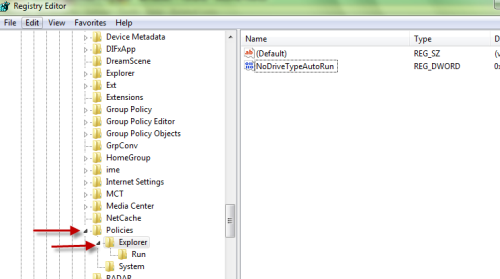
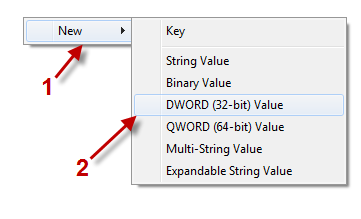
4. Right-click on the right pane and choose New->DWORD (32bit) Value. Name the new value DisallowRun.
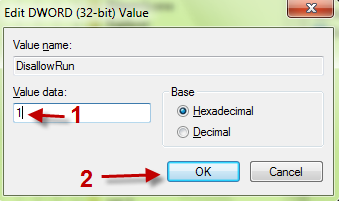
5. Double click on it and change its value to 1. Hit OK to close the box.
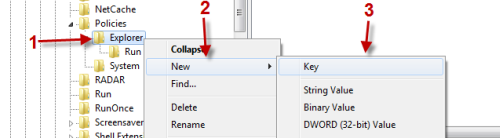
6. Righ-click on Explorer and choose New->Key. Name the new key DisallowRun too!
7. Right-click on the right pane and choose New->String Value
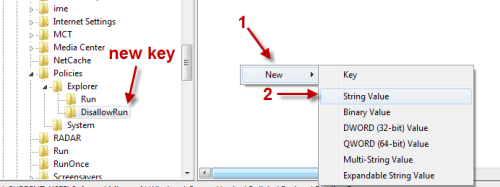
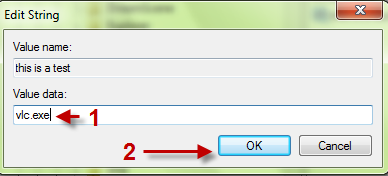
8. You can name the new value anything you like ( for example: test, program 1, program 2…).
9. Double click on it and type the name of the programs that you want to disable. ( You must include the exe extension. For example: vlc.exe)
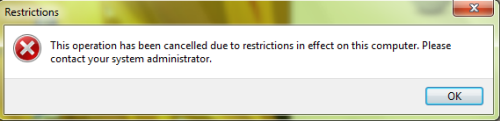
10. Restart the computer to take effect. When you lauch the disabled program, you will get something like this:
11. To renable the program, simply delete that string value and restart the computer to take effect.
Notes: Each string value allows you to disable one program. You can repeat step 7, 8 and 9 to disable more programs.
Make sure you provide the correct program’s exe name or it won’t work. You can find the right exe’s name by right-clicking on its shortcut, choose Properties and look at the Target line.