All of us have our favorite apps. This tutorial shows the easiest and fastest way to start them. Continue reading to learn how to create a keyboard shortcuts to start an app.
Go to the start menu and right-click on the app for which the shortcut is to be created.
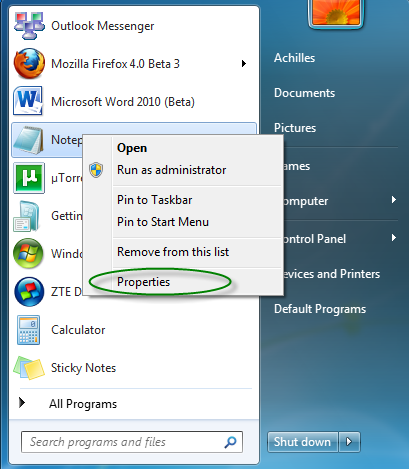
Select properties.
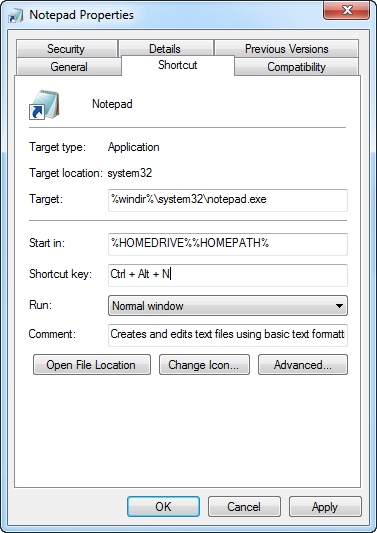
Click on the text box next to shortcut key.
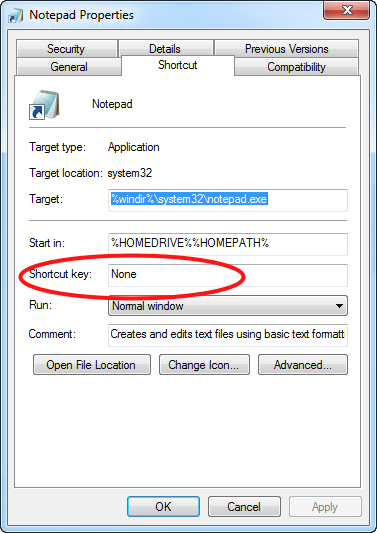
Select the required key. Once the key is selected, ‘Ctrl + Alt’ is automatically added. Then click Apply. We have used the key ‘N’ in this example. To run the app we simply have to press Ctrl, Alt and the selected key.
This definitely beats having to go through the start menu each time to start the same app. It saves a lot of time too.