Windows 7: Add a Custom Message to the Welcome Screen

Wonder how to add your own message to the Windows 7 welcome screen? This recipe will show you to customize your welcome screen with a personal message.

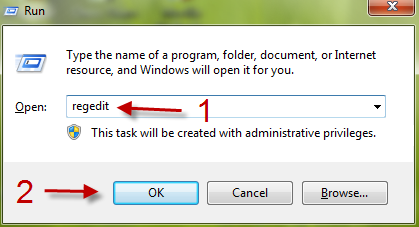
1. Hit Winkey+R to open up the Run window.

2. Type in Regedit and hit OK to open Regedit.
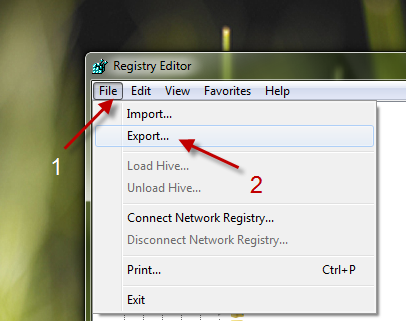
3. It’s important to back up your registry first before we do the trick. First, go to File then Export
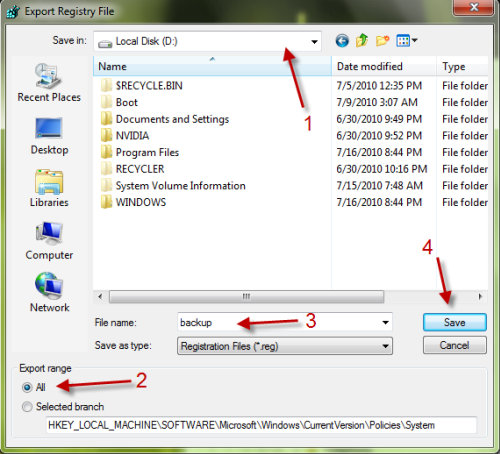
4. The Export Windows Registry will pop up,you can choose where to save the backup file, choose All at Export Range,name the file and click Save to process.
5. Go to HKEY_LOCAL_MACHINE\Software\Microsoft\Windows\Current Version\Policies\System

6. Right click on legalnoticecaption and choose Modify to edit string.
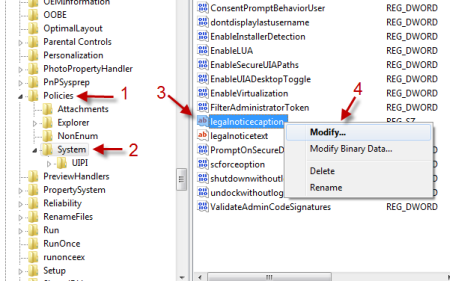
7. A window will pop up,you can type in the title of your message in Value Data. (In this post is Tech-recipes.com). Hit OK to close the window
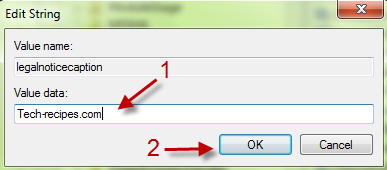
8. Now, continue to right-click on legalnoticetext and choose Modify. (In this post is Welcome to Tech-recipes.com)
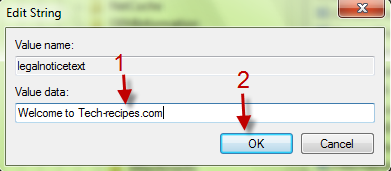
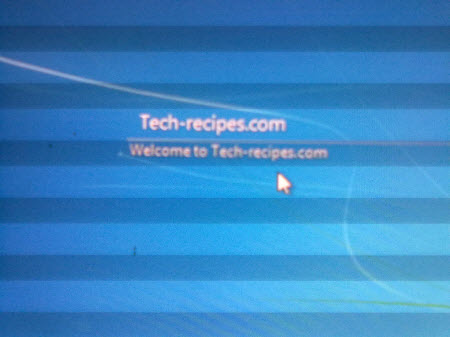
10. Close the regedit window and log off or restart the computer to see the result.

 

About Lê Hoàng

When not creating exciting new Android games, Lê Hoàng is here crafting tutorials, tweaks, and fixes for your enjoyment.
View more articles by Lê Hoàng

The Conversation

Follow the reactions below and share your own thoughts.

9 Responses to “Windows 7: Add a Custom Message to the Welcome Screen”

  1. July 22, 2010 at 2:24 pm, Elvin said:

    I think it can also be done from Administrative Tools -> Local Security Policy -> …

    Reply

    • July 22, 2010 at 2:46 pm, Anonymous said:

      Thanks for the tip :)

      Reply

    • July 22, 2010 at 4:05 pm, Anonymous said:

      Thanks for the information. I don’t think all versions of windows 7 have the admin tools. Reg hack should work for all versions. Certainly, using the local security policy is the easiest.

      Thanks, guys!

      Reply

  2. July 27, 2010 at 6:12 pm, TuneUp said:

    • Hi TipzTV—thanks for your custom message recipe! Your tip is great and very simple, I’m already thinking of an original welcome message—any suggestions? I’ve also been looking for ways to change the background of the welcome screen/logon page. Have you ever tried to change the blue logon screen to give it more style? I recently downloaded a simple tool that helps me change the screen and gives some sleek background options. I just changed to the gold-colored sequins, but they also have some nature backgrounds too.

    Reply

    • July 27, 2010 at 7:44 pm, Matt_smith_1984 said:

      Nice, I like this hack.

      Reply

    • July 28, 2010 at 3:31 am, Anonymous said:

      Hi TuneUp :)
      Thanks for your feedback :D
      This is what you are looking for: http://www.tech-recipes.com/rx/6495/windows-7-change-logon-background/
      Hope you like it :)
      “I’m already thinking of an original welcome message—any suggestions?”- did you mean you want to replace the “Welcome” text?

      Reply

      • February 25, 2011 at 5:04 pm, bender said:

        “Welcome! to the world of tomorrow!!!

        Reply

  3. December 06, 2010 at 8:10 pm, mizie said:

    can change size of text???

    Reply

    • December 07, 2010 at 6:31 am, Anonymous said:

      Sorry but you can’t :(

      Reply

Leave a Reply

You may also like-

How to Boot into Vista's Audit ModeThere are two different ways of booting into Vista -- Windows Welcome and Audit Mode. Windows Welcome or OOBE (out of box experience) is ...