The sharing of files and folders is a very easy task in windows; however, it could also be dangerous, if you are not aware of what files and folders are shared from your computer to your network. Two different methods are described.
Any user connected to the network to which you are connected could compromise the security of the folders you have shared if their permission are not properly managed. Therefore, it is essential to know which files and folders you are currently sharing.
In both Windows 7 and Windows 8 there are two methods using you can view your sharing information.
Method 1: Using Computer Management GUI (recommended)
[+] compmgmt.msc
      [-] Shared Folders
           [-] Shares
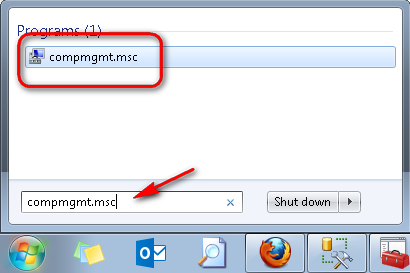
1. First off search for compmgmt.msc in windows search program and files, and open it.
2. Navigate to left pane and click Shared Folders then click Shares.
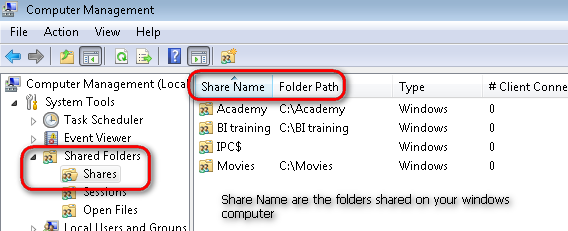
3. Now you will see the list of folders that you have shared on your computer under share name column.
4. You can right click on Share name and click on Stop sharing a folder over network.
Method 2: Using Windows Command Line
[+] cmd
      [-] net share
1. First search for cmd in Windows search program and files and open it.
2. In the opened command line window, type net share.
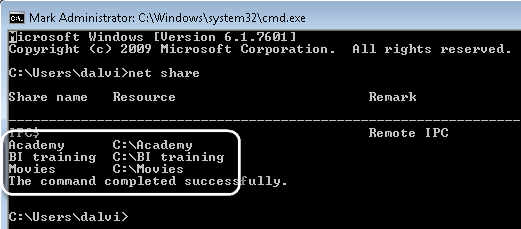
3. You can see the share name and the resource (the actual path of shared folders) in the list.