

In Windows Live Messenger 2011, received files will be automatically saved to C:\Users\Your user name\Documents\My Received Files. However, you can change them to a different, preferred folder if you wish.
1. Launch Windows Live Messenger 2011 and log into your account.
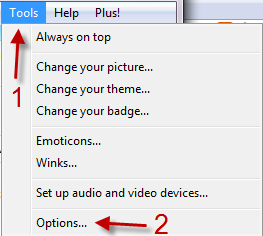
2. Go to Tools->Options….
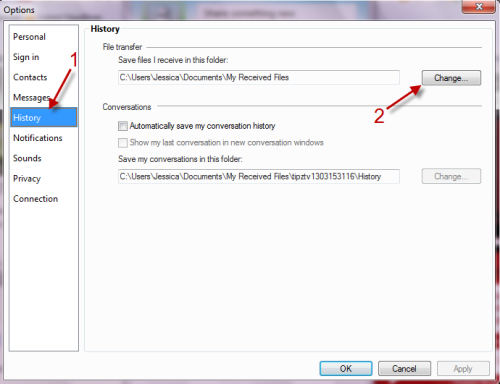
3. In Options window, go to History and look for File transfer section, click Change…
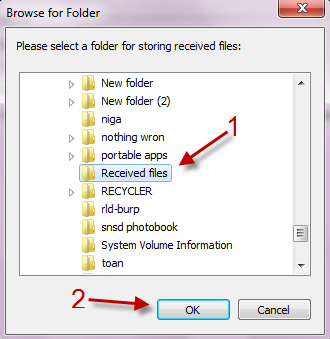
4. When the new window pops up, point it to your prefered folder and hit OK.
5. Back to Options window, hit OK again to save the setting.




