

By default, the Preview application in OS X opens groups of images in one window; however, individually selected images are each opened up in their own windows. If you prefer to work from a single window instead, this tutorial will show you how to configure Preview to open all images in one window, regardless of how they are selected.
This tutorial has been testing in all modern versions of OS X since Leopard including Snow Leopard and Lion.
1. Open Preview.
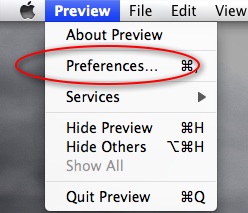
2. Go to Preferences.
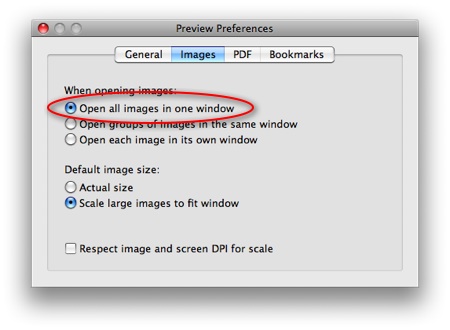
3. Select the Images tab.
4. Beneath When opening images, select the Open all images in one window radio button.
5. Close the Preferences window.




