When you set up your Gmail account in Windows Live Mail 2011, all of Gmail’s folder labels will appear on the left sidebar. If you only use some of those labels, you may want to hide the rest for better mail managing. This tutorial will show you how.
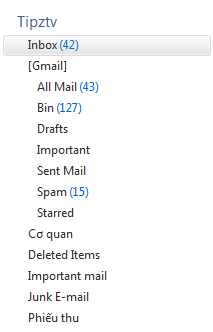
Here is the screenshot of all labels (default settings):
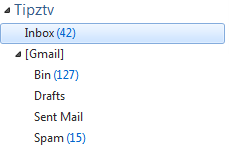
After we hide some labels:
1. Launch WLM 2011 and log into your account.
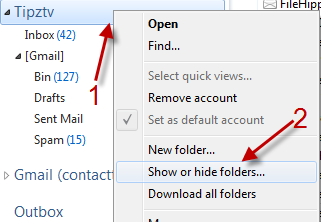
2. Go to Accounts->IMAP folders or you can right click on your account on the left sidebar and choose Show or hide folders…
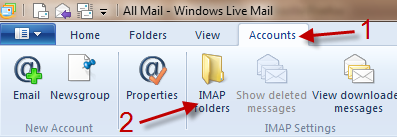
or
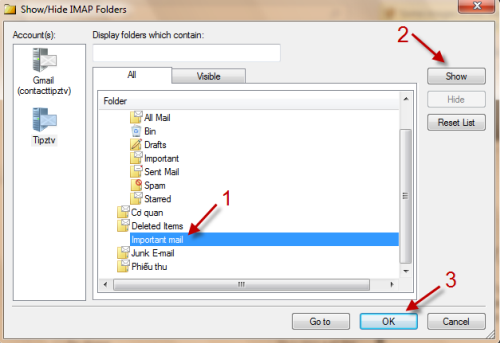
3. In Show/Hide IMAP Folders window, choose your account on the left side, choose the label you want to hide and hit Hide. Finally, click OK to close the window.
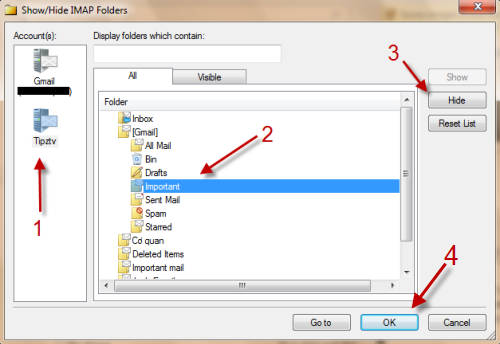
4. To re-show the label, simply click on it and choose Show. Hit OK to close the window.