

Worried about people trying to guess the administrator password on your Windows 7 box? By locking out your account after a number of invalid login attempts, your account will be safe.
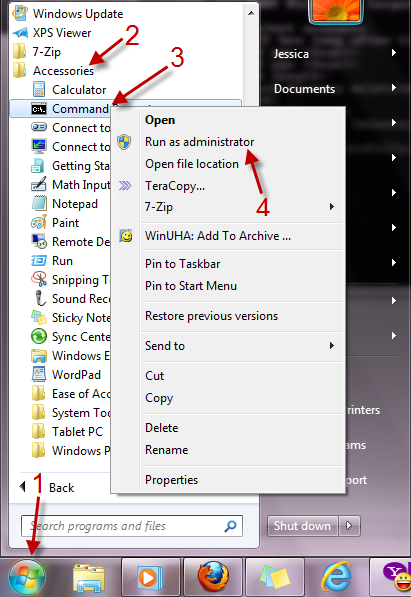
1. Click on the Orb->All Programs->Accessories->Right click on Command Prompt->Run as administrator.
2. In Command Prompt, type in: net accounts and hit Enter.
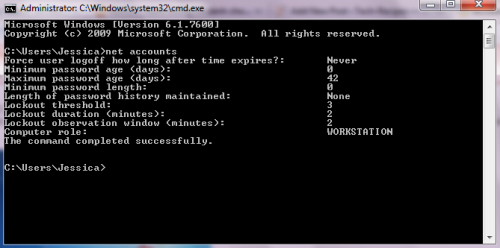
3. To change the number of invalid login, type: net accounts /lockoutthreshold:x (replace x with a number, account will be lock out after x invalid login attempts) and hit Enter.

4. By default, Windows will lockout an account for 30 minutes. To change it, please type the following: net accounts /lockoutduration:x (Replace x with a number, x must be bigger or equal to lockoutwindow time (in step 5) ) and hit Enter.

5. You may also want to change the period of time that Windows reset account lockout counter (default is 30 minutes), just type the following: net accounts /lockoutwindow:x (replace x with a number, x must be smaller or equal to lockoutduration time (in step 4) ) and hit Enter.

From now on, if someone try to guess your password, they will be locked out.




