

This recipe explains how to enable accessibility options on the Apple iPad that can assist those with vision impairments or bad vision. The iPad’s OS (iOS) has accessibility options that we can enable to make reading and navigating much easier by zooming the screen in and in turn enlarging the view. Navigation and zooming is done via three finger gestures.
1. On your iPad go to Settings > General

2. Touch on Accessibility. In here, we will want to go into Zoom
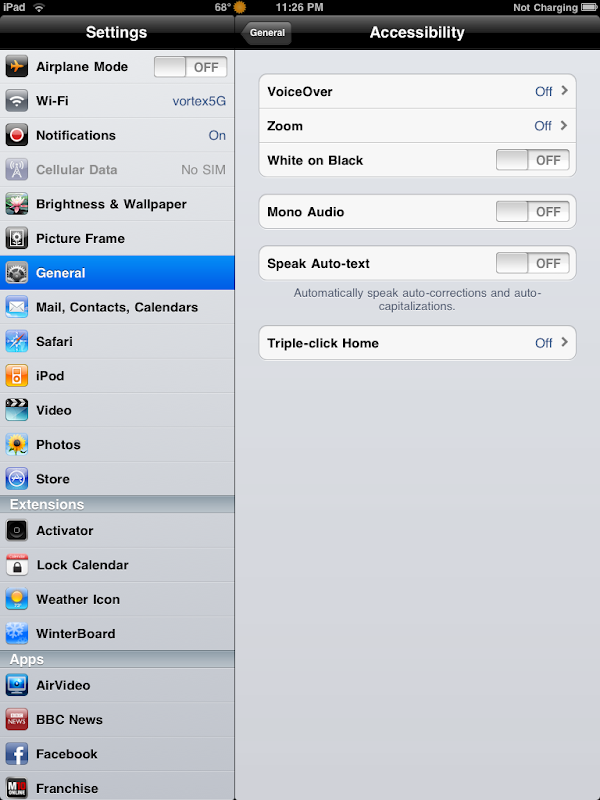
4. Turn on Zoom.
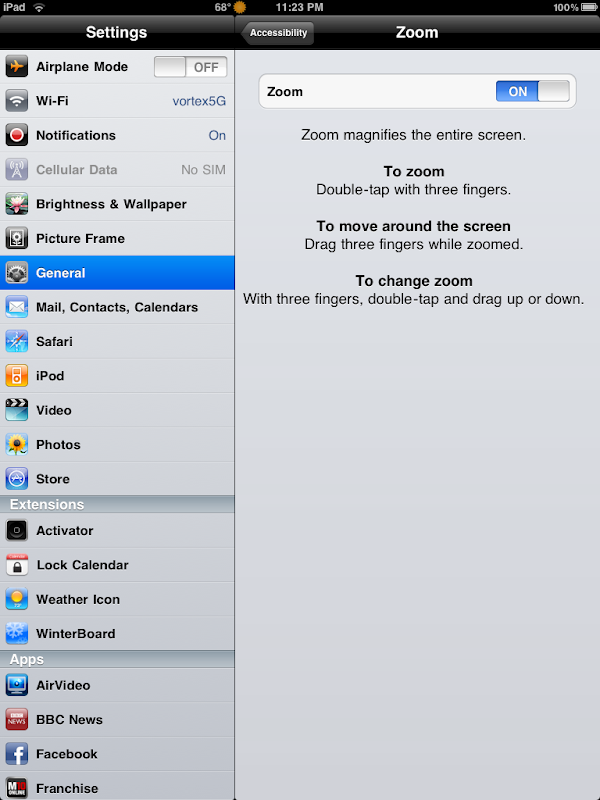
Now once you exit you will notice that your screen will be zoomed in on the upper left area of the screen. You can zoom out, navigate zoom with three finger gestures.
Enable / Disable Zoom – Double Tap with three fingers
Move/Navigate while zoomed in – Drag with three fingers in direction to move
Change Zoom level – Tap twice with three fingers, then hold and move up or down to zoom in or out.




