

It is a quiet and peaceful morning. Everything is just perfect. However, then you switch on your computer, and the start-up sound of Windows destroys the blissful environment. If you ever need to disable the Windows start-up sound and perform a silent boot, these directions will return you to peace and quiet.
Frequently, booting up without the startup sound is very useful. These steps show you how.
Go to the Control Panel -> Sound.
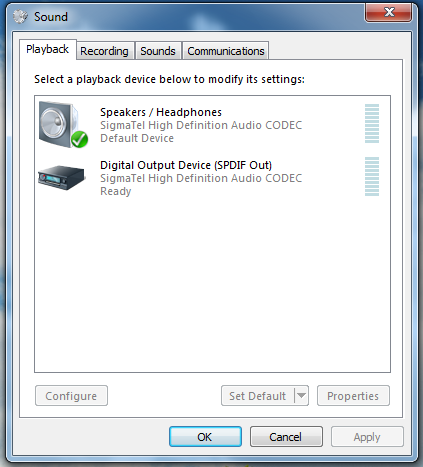
Go to the Sounds tab.
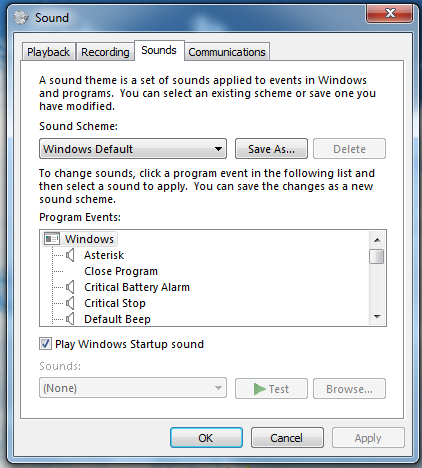
There is a check-box Play Windows Startup sound – deselect it. Then click on Apply.
Now, it’s done – no more pesky Windows start-up tone.
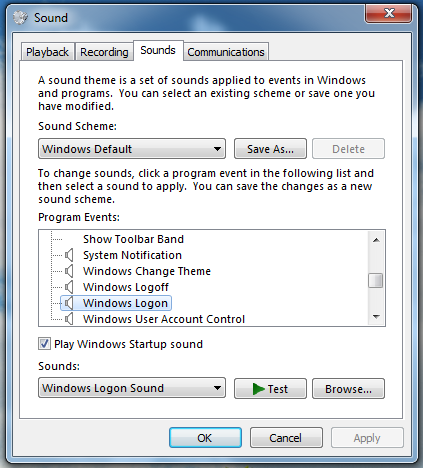
Various other jobs can also be performed from this page. The various sounds such as Windows start-up, shutdown etc. can not only be disabled, but also changed. To change, select the tone from the list which you want to change. Click on Browse and select the desired sound file (it can even be a song). You can now assign tones to anything and everything such as clicking on the Start menu.




