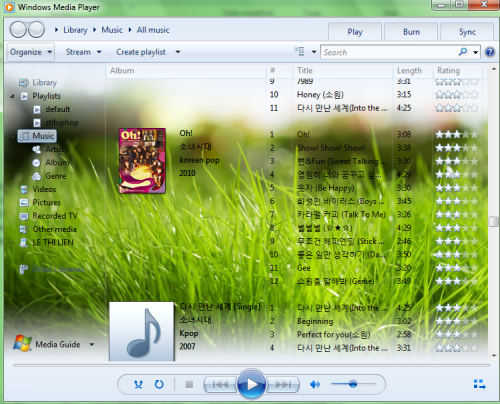
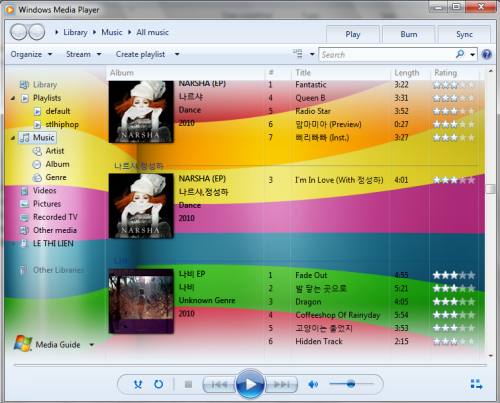
Are you tired of your old Windows Media’s library background? Do you want to change its background into your favorite wallpaper? These steps will help you to customize your Windows Media Player.
Before we get started, make sure your favorite wallpaper(s) are in .PNG or .JPG format (we recommend JPG format).
You must log in as administrator to perform this task.
This tech-recipe requires some resource modification so make sure to backup your file first.
Use it at your own risk. (We tested and it works perfectly)
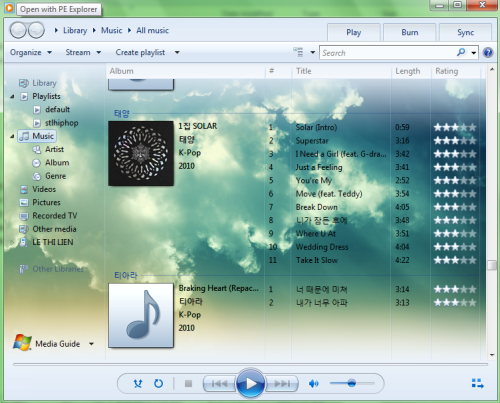
This is what you will get after modified the DLL.
1. Download PE Explorer and install as usual.
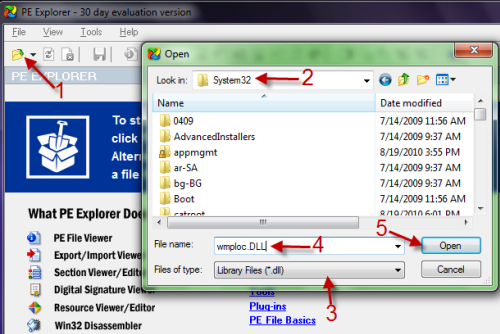
2. Launch PE Explorer, click on Folder icon and navigate to C:\Windows\System32. Choose Library Files (*.dll) in Files of type, choose wmploc.dll and click Open.
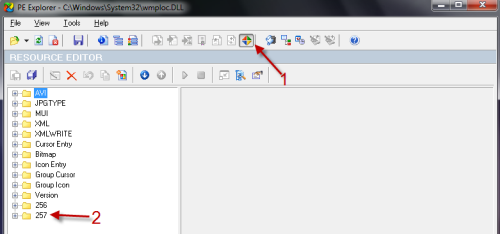
2. Be default, it will open wmploc.dll in Headers info, you must click on the small 4-colors icon to switch to Resource viewer/editor. After that, expand the 257 folder.
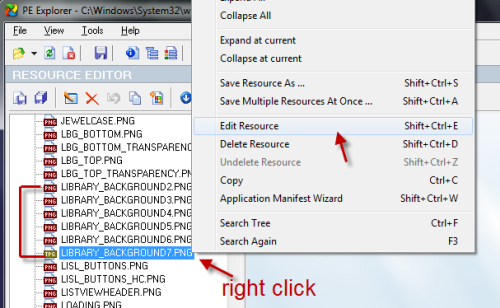
3. Scroll down and right-click on LIBRARY_BACKGROUND X.PNG (X=2 to 7) and choose Edit Resource. Only LIBRARY_BACKGROUND7.PNG can use JPG format (The rest use PNG) The reason why I recommended you to choose LIBRARY_BACKGROUND7.PNG is that it is the default background of Window’s media library. If you choose one of the rest, you may have to do some registry hack (See step 8)
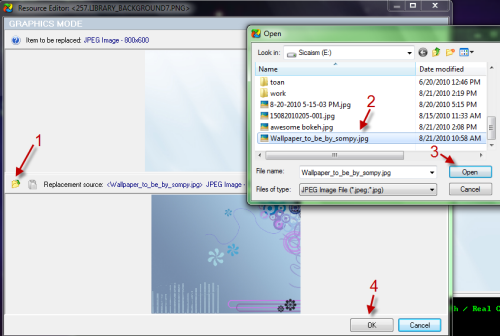
4. Click on the Folder icon, choose your favourite picture, hit Open and then OK to close the box. When it ask you: Value has been changed. Do you want to proceed? Click on Yes.
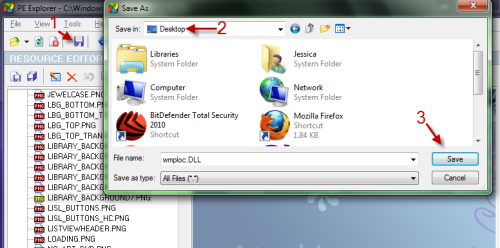
5. Now back to program’s interface, click on the Save button, choose where to save your new DLL file and hit Save.
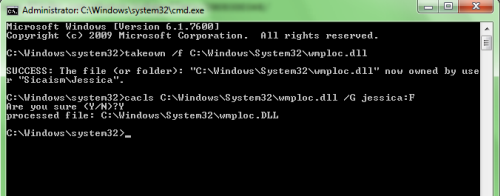
6. Since you don’t have permission to rewrite system files (even you are the administrator), we must take ownership of the file to do it. Now, click the Orb (Start button), type in cmd and hold Ctrl+Shift+Enter.
To take ownership, type the following command:
Takeown /f C:\Windows\System32\wmploc.dll and hit Enter.
To give full control of system files, type this command:
Cacls C:\Windows\System32\wmploc.dll /G Jessica:F and hit Enter. Type Y and hit Enter again when the message: Are you sure <Y/N>? appears. (Note: replace Jessica with your username)
After that, it should look something like this
7. That’s it. Now go to C:\Windows\System32 and paste your new DLL file there. (Copy and Replace) It should take effect immediately so you can fireup your Windows media player and see what’s happen with its background 🙂 If there’s nothing changed, please restart your system to take effect.
8. If you want to use your PNG file with LIBRARY_BACKGROUND X.PNG (X=2 to 6) or if you don’t see anything changed, perhaps your registry key has been changed. Hit Winkey+R to open the Run box, type in regedit and hit Enter to access registry editor. After that, navigate to
HKEY_CURRENT_USER\Software\Microsoft\MediaPlayer\Preferences and look for LibraryBackgroundImage’s value.
LIBRARY_BACKGROUND 2.PNG’s value= 1
LIBRARY_BACKGROUND 3.PNG’s value= 2
LIBRARY_BACKGROUND 4.PNG’s value= 3
LIBRARY_BACKGROUND 5.PNG’s value= 4
LIBRARY_BACKGROUND 6.PNG’s value= 5
LIBRARY_BACKGROUND 7.PNG’s value= 6
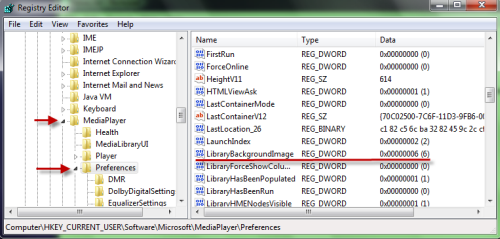
9. Double click on LibraryBackgroundImage and change its value to appropriate value which I provided above (after that, you may need to restart your system to take effect)
Advice: because Windows media font is in black, it will be better if you use a bright wallpaper.
If you face any problem, feel free to leave a comment 🙂