


When you normally empty trash, the files deleted are not actually removed from the computer. Instead, their space is just made available for other files to occupy. This means that certain applications such as data recovery tools can give someone complete access to these files. Using this method to securely empty the trash will overwrite the deleted files and make sure that the file cannot be recovered or accessed.
The ability to empty the trash in a secure manner has been available in OS X since Snow Leopard.
Traditionally to remove items from the trash, the user will right-click (or Ctrl+left-click) the trash icon and select Empty Trash to delete files. This will “free” the space on your computer’s hard drive. As that space is use by applications, the data slowly disappears.
To securely delete the files in the trash instead, the user needs to Command+right-click (or Ctrl+Command+left-click) the trash icon and select Secure Empty Trash. The space will be made available for other applications and the original data will not be able to be recovered.
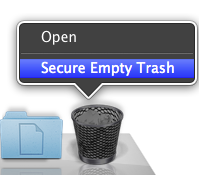
You can also change your system to always securely empty trash by changing the Finder’s preferences.
1. Open Finder.
2. Go to the menu, click Finder and select Preferences.
3. Select the Advanced tab.
4. Check the Empty Trash securely checkbox.
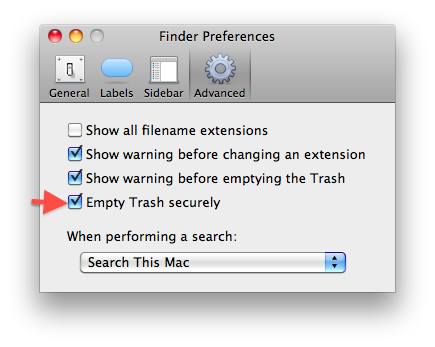
5. Close the Preferences window.
Editor’s note: This article has been updated to confirm compatibility with all versions of OS X after Snow Leopard including Lion 10.7.





