

You are eight directories deep in the terminal, and you want to open an Explorer window exactly where you are. By following these steps, you can accomplish this easily! This works in all modern versions of Windows including XP, Windows 7, and Windows 8.
You have navigated deep into a complicated folder structure with your command prompt, as the example below illustrates:
C:\Documents and Settings\xxx\My Documents\old documents\1997\tax\backup
You decide you could do this more easily with an Explorer window, but you also realize that you do not want to click and click until you find this directory again. You really just want to open Explorer exactly where you are in your currently in the terminal.
Either one of the following commands will accomplish your needs:
start .
explorer .
Do notice the space and dot after the command. This is what points Explorer to the correct directory. By entering either of these commands, the Explorer window will open to your current folder in your command prompt.
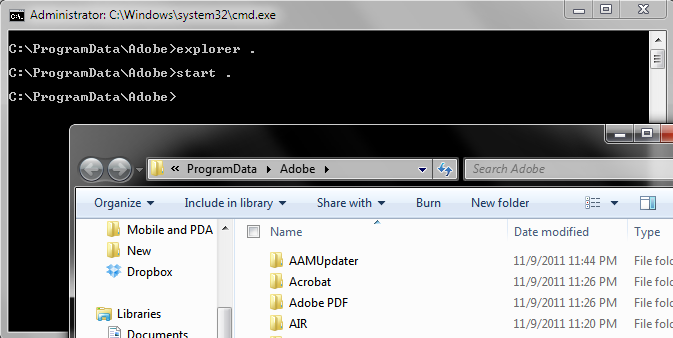
In my example above, I have navigated to C:\ProgramData\Adobe in the command line window. We can easily open Windows Explorer to our current working directory by using this technique.





