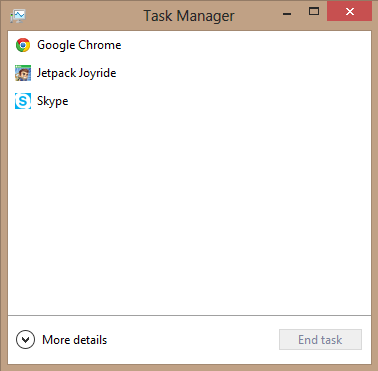
As you may have noticed, the new Task Manager is quite different from the older version. The most straight forward functions have remained the same but may be difficult to access for new users because of the completely redesigned UI.
When you first launch the Task Manager on your fresh Windows 8 operating system, you will notice that all of the tabs are hidden by default. They can be brought back by clicking “More Details.” Getting used to the not so subtle changes can be hard. It is much more comfortable to just bring back the classic Task Manager, and save yourself some time.
This tutorial will show you how you can get the classic Task Manager back in a few basic steps. The classic (Windows 7 style) Task Manager is much easier to manage for the average user.
1.From the Explorer, enter this path: Windows/System32. 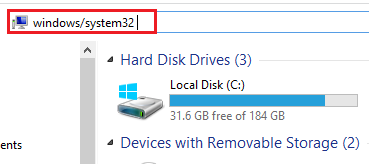
2.Now, scroll down until you find a folder labeled en-US, and then open it. 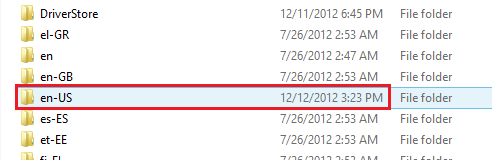
3.Search the opened folder for taskmgr.exe.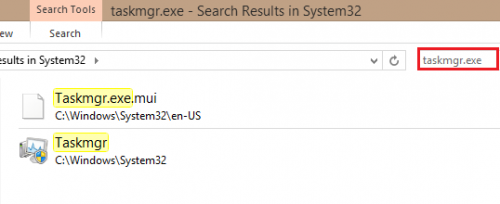
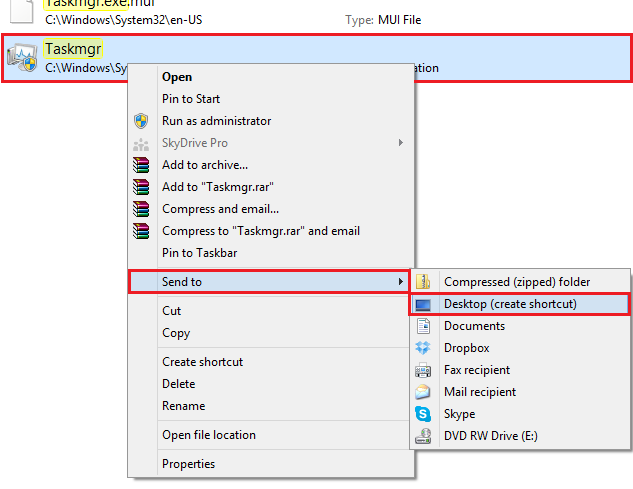
4.Right-click on the .exe file, and select Send to > Desktop. 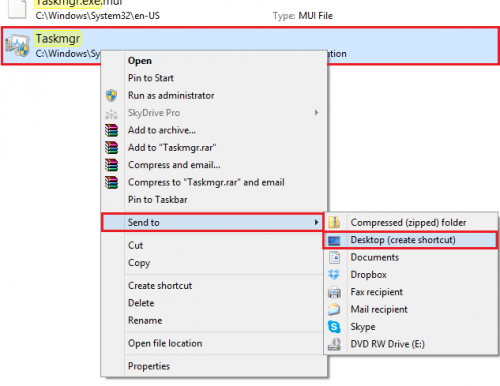
Now, when you run the shortcut, you should notice the familiar UI of the Task Manager. Click More Details to show basic tabs.