Cropping photos in Word is useful if you want to remove unwanted areas from your image.
Microsoft Word has simple image editing tools. One of the most common uses is to chop a photo to isolate a part of an image that has been imported into a document.
1.First, import your image, if it is not yet imported. Then click on the image to select it.
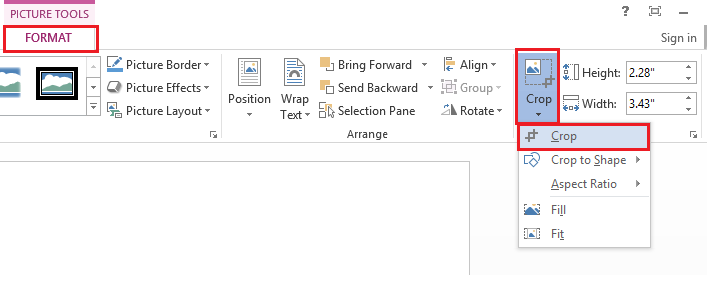
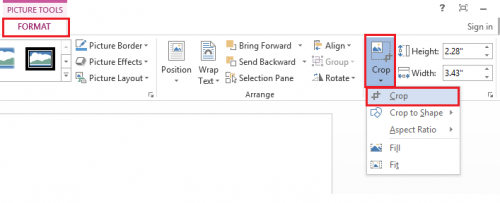
2.From the Word ribbon under Picture Tools select Formatthen Crop > Crop.
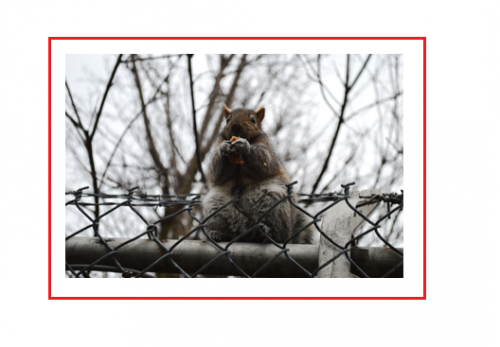
3.Adjust the proportions. Make sure that parts of the image that you want to keep are in the crop window, and hit Enter.
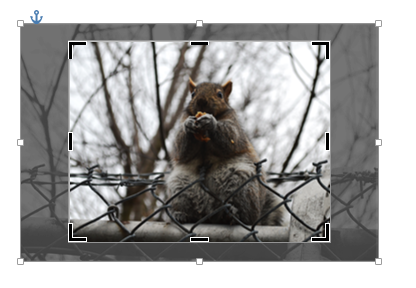
The cropped image may be adjusted with layout options if you choose to do so.
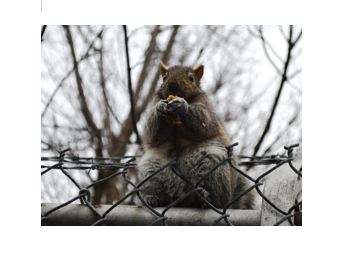
The step below describes how you can crop your image to fit a specific shape. This can be useful depending on the layout and content of your document.
4.Select Crop and then choose Crop to Shape. From the shape list on the left, select the shape that you want to use to constrain your image.
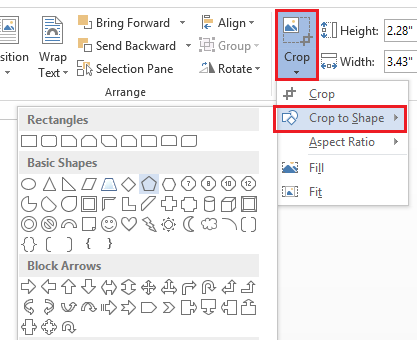
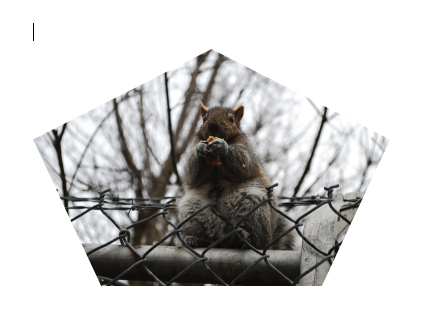
Below is an example of a pentagon-shaped crop. Try various shapes to find one that best suits your document.