Seeing the “PC will restart in 15 minutes to complete the update” window can be a nuisance. The simple registry hack described in this tutorial will remove it.
Please note that removing this window means that your update will not be completed until you manually restart your PC. This registry hack puts you in power to restart your PC on your own time. Also, do not attempt to change the registry if you do not know what you are doing. Modifying some folders can be fatal to your PC.
1.From your Start screen, search for regedit. Once it comes up, click on it. This brings up the Registry Editor. 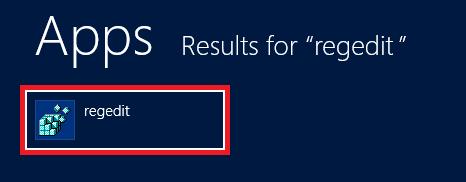
2.With the registry open, navigate to the following:
HKEY_LOCAL_MACHINE\SOFTWARE\Policies\Microsoft\Windows\WindowsUpdate\AU
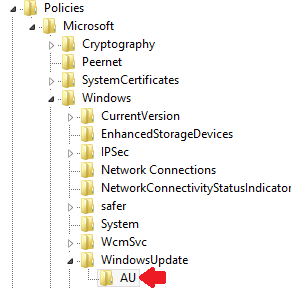
3.In the AU folder, right-click and click New. Then select DWORD (32-bit) Value. Name the DWORD “NoAutoRebootWithLoggedOnUsers” 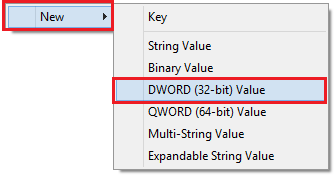
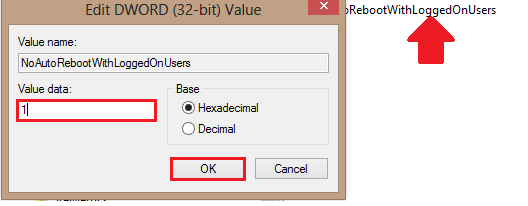
4.Double-click on the newly selected DWORD. Then set the Value data to 1. Click OK to finalize the settings.