


With Microsoft Word 2013, not only can users view PDF files and edit them, but they can also encrypt them with a password for privacy reasons. However, the encrypting option is hidden in an inconvenient place. This tutorial will show you how to access and use this feature to set passwords on your PDF files.
1. Open the PDF document that you want to encrypt with a password in Word 2013.
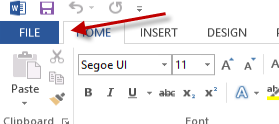
2. When the document is loaded into the program, click the blue File button to access the Backstage view.
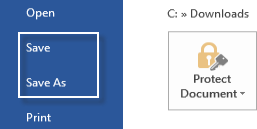
3. Choose either the Save or Save As option to rewrite the file to your hard drive.
4. When you save the file, the Explorer window will pop up on the screen as usual. Make sure you choose PDF in the Save as type option.
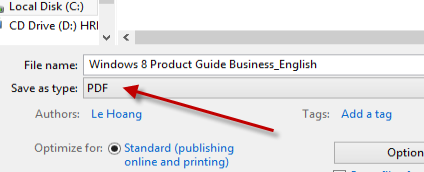
5. Next, you will have to click the Options button to access extra settings for the PDF file.

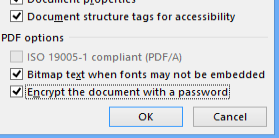
6. In the pop-up window, check the Encrypt the document with a password option, and click OK.
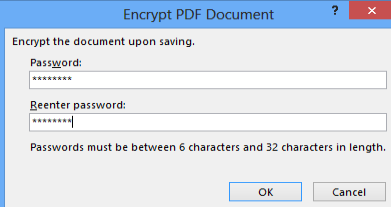
7. You will be asked to provide your new password to encrypt the file. Enter it twice in the appropriate fields, and hit OK.
8. The next time you open the document, you will be asked to give a password before you can view it.





