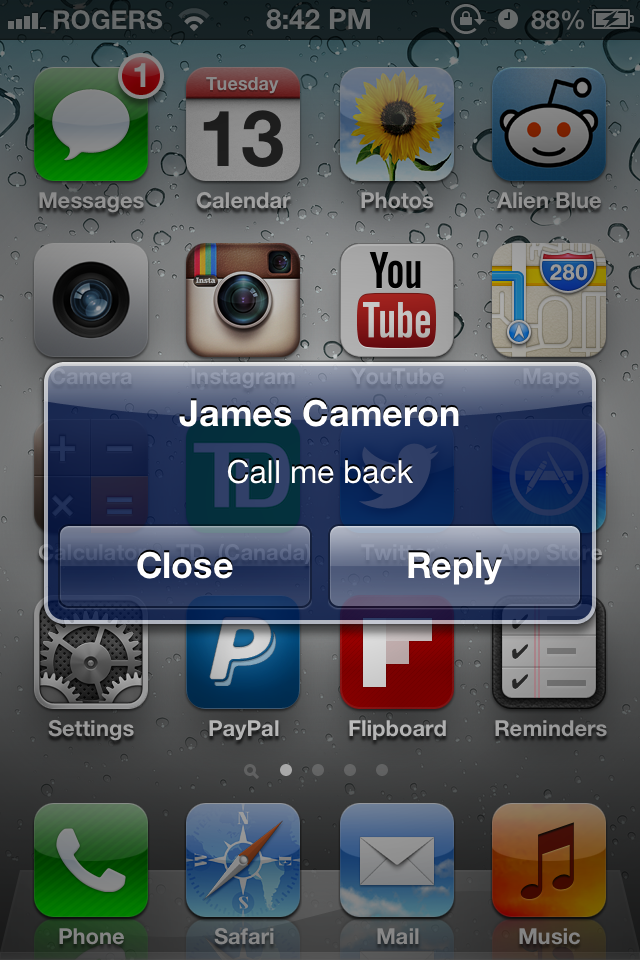
Different users of iPhone and iPad devices have different notification preferences. These alerts can be tweaked to your preference.
The default notification view on iOS 6 is the banner. This notification appears at the top of the screen like the following example image.
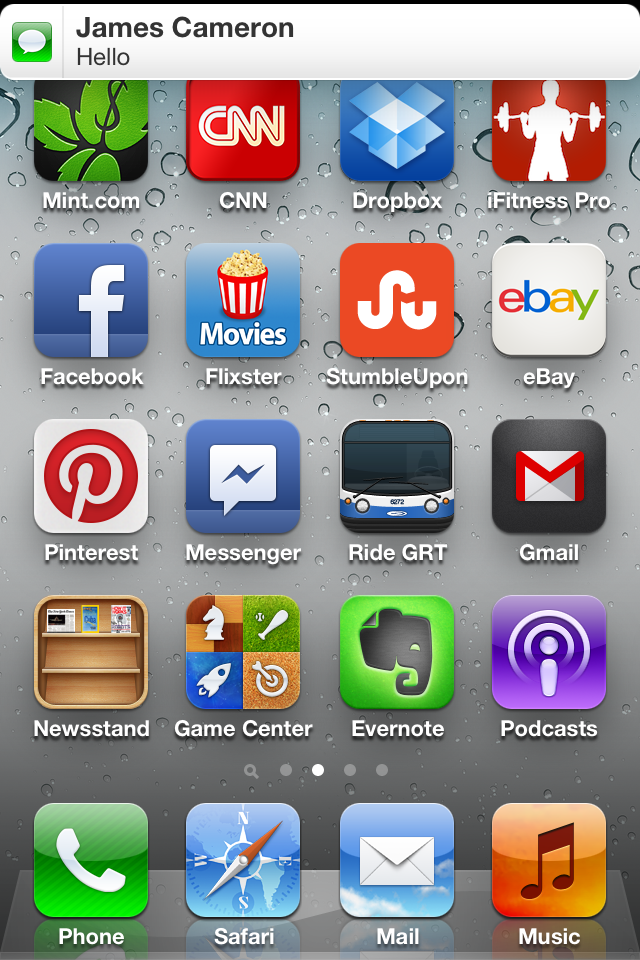
To change back from banners to the old alert view, follow these directions.
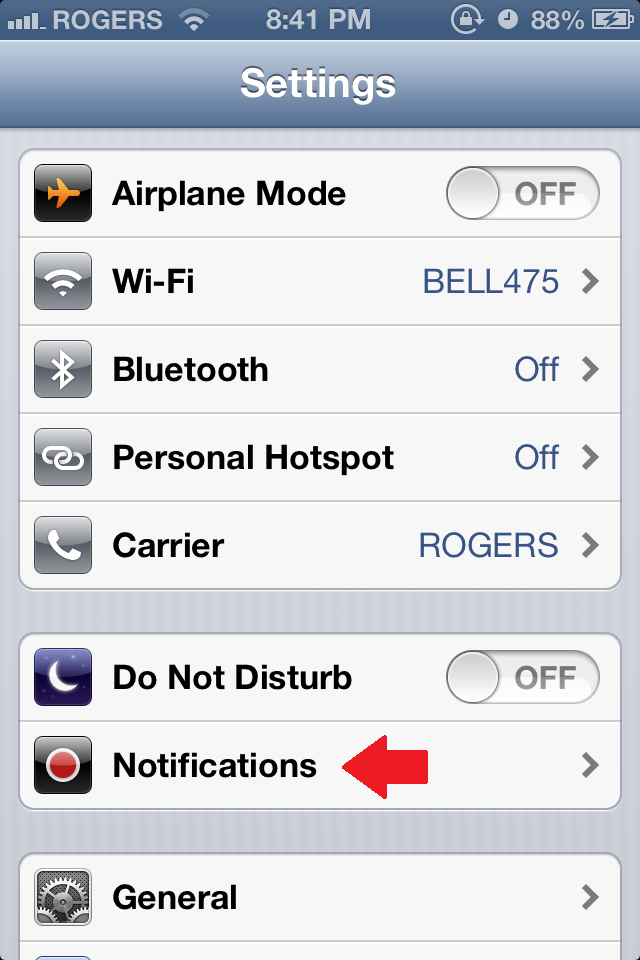
1.Launch the Settings app.
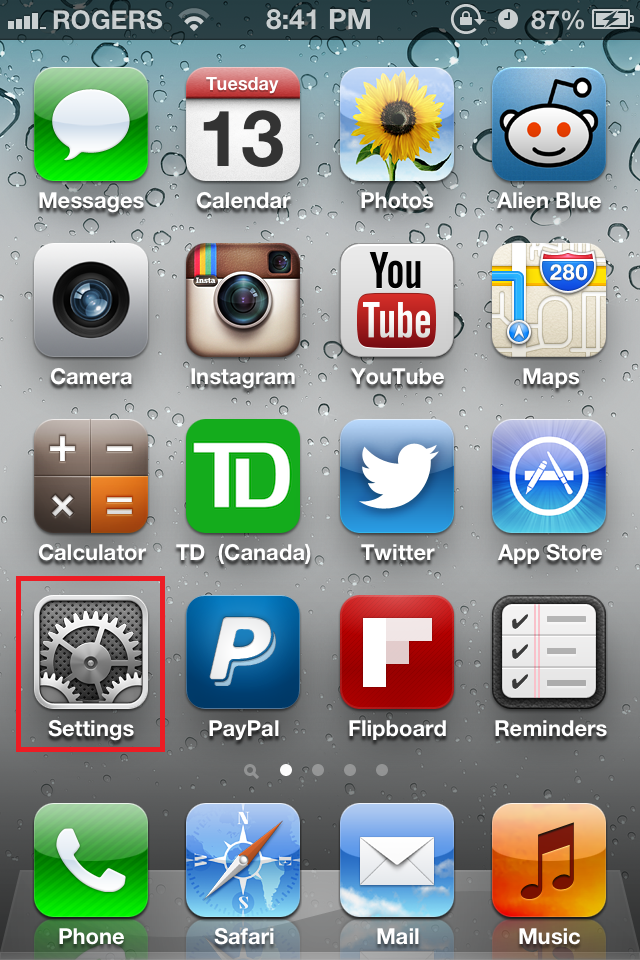
2.In the Settings app tap on the Notifications tab.
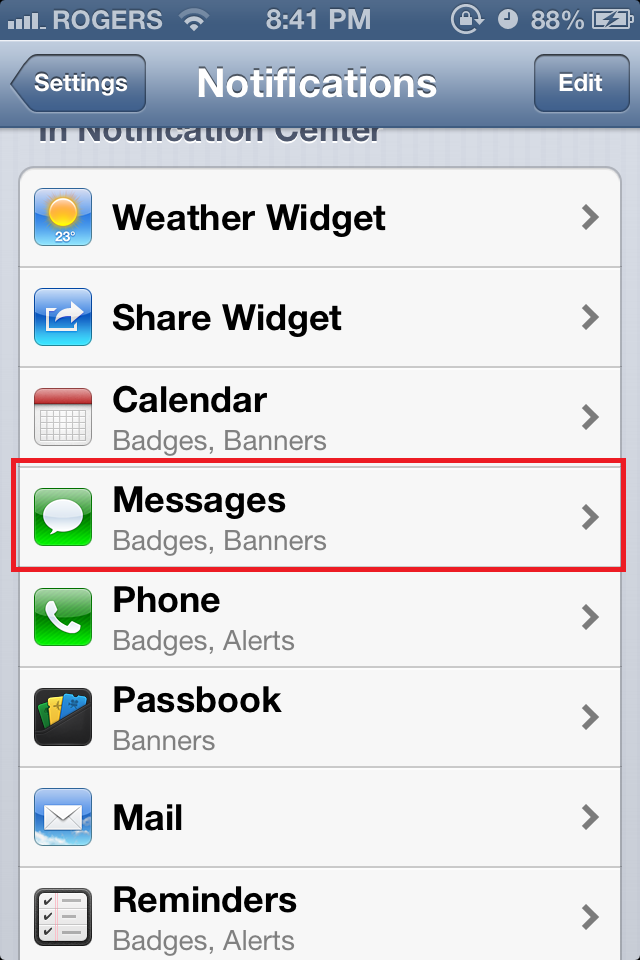
3.Select the app for which you will be changing notification behavior. In this case I will use Messages as an example.
4.Current we have the Banners option selected. Instead we can choose either None or Alerts. For this tutorial we will select Alerts.
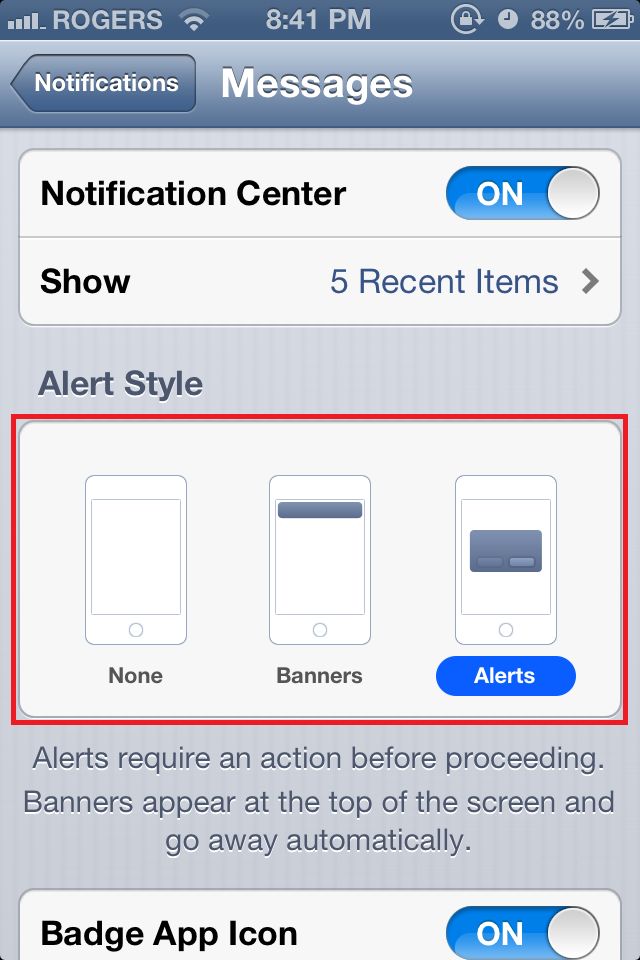
Next time when you receive a text message, you will notice a pop-up in the middle of your screen forcing you to choose between closing the pop-up or immediately taking action.