

Windows 7: Setting Parental Controls Based on Game Rating

Parental controls on Windows 7 help to limit your child’s computer activity. Through the following directions you can prevent your kids from playing games that are rated for adults. 

Make sure that your child or children all have standard user accounts. Parental controls can only be applied to non-administrator accounts. A child with an administrative level account could change the parental controls anyway.

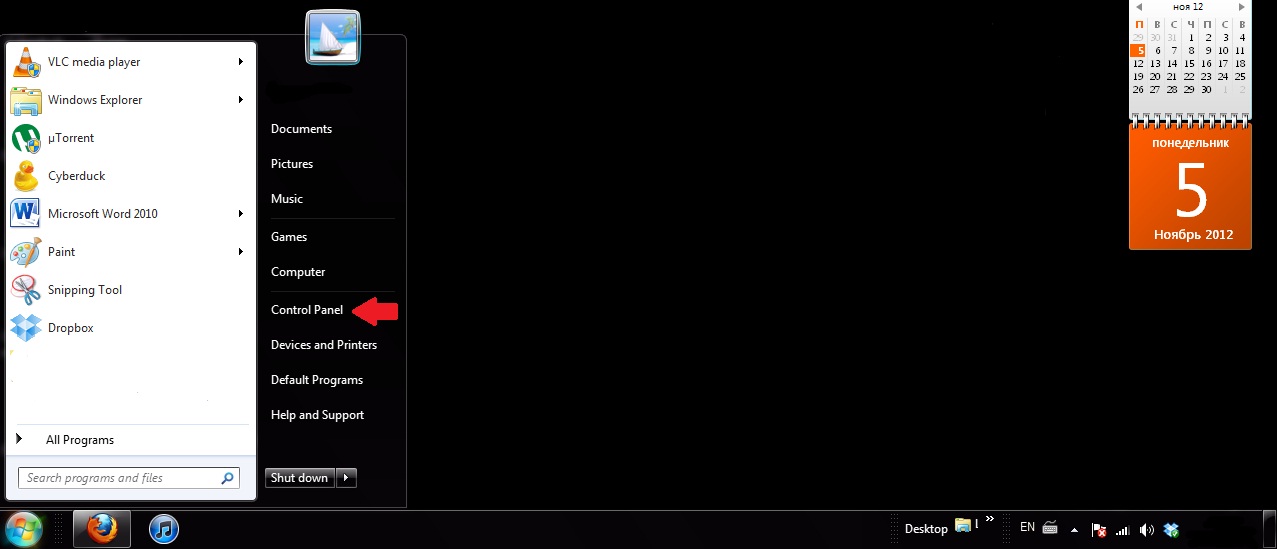
1.Click on the Start button and select Control Panel.
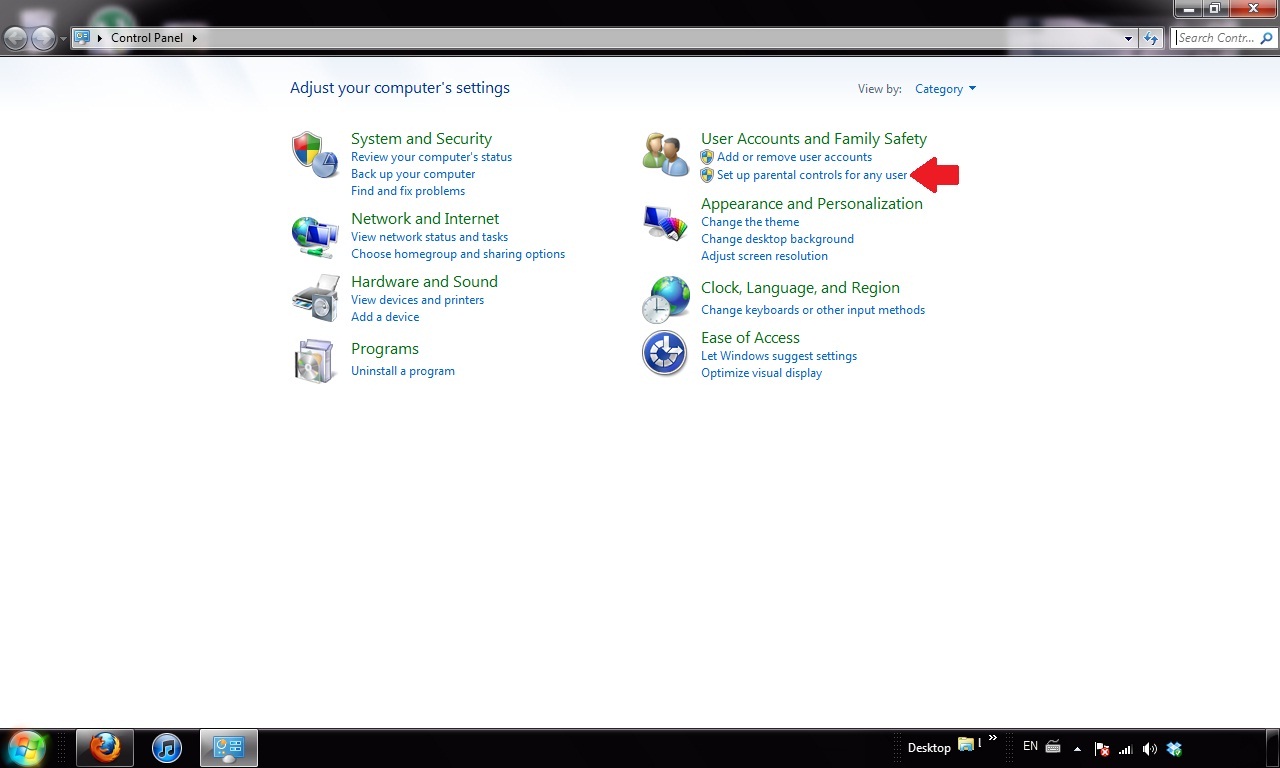
2.Under User Accounts and Family Safety click on Set up parental controls for any user.
3.On the right hand side select Game Rating Systems. 
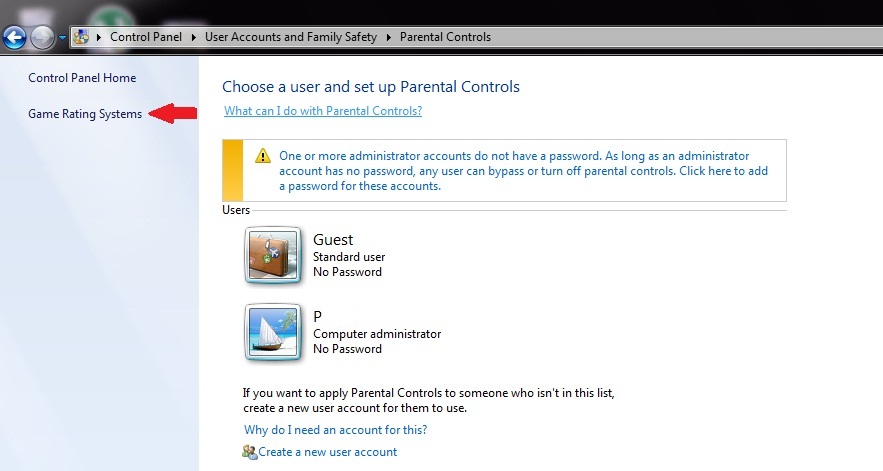
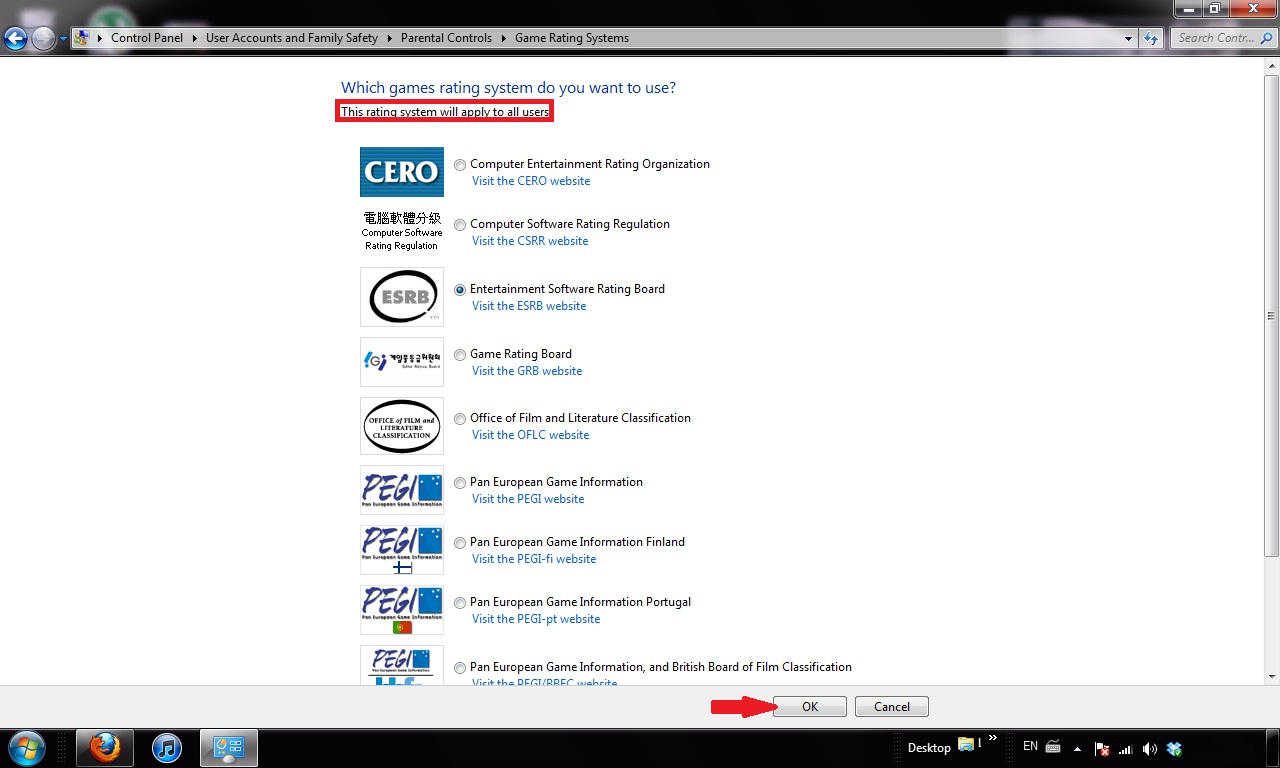
4.A list of game ratings will show up. Select the one you want to use. Note that the rating system will apply to all users. Press OK.
 

About Alex Bahdanovich

Writer, author, wordsmith -- this tech enthusiast enjoys Starbucks, good reads, and golden retrievers.
View more articles by Alex Bahdanovich

The Conversation

Follow the reactions below and share your own thoughts.

2 Responses to “Windows 7: Setting Parental Controls Based on Game Rating”

  1. November 13, 2012 at 7:05 pm, Usman said:

    Perfect! can we do it in Windows 8?

    Reply

  2. November 13, 2012 at 7:06 pm, Usman said:

    Oh .. I forgot to check notify me of the follow-up comments via email. So I have to comment again to do it now :-D

    Reply

Leave a Reply

You may also like-

Playstation Vita: Enable Parental ControlsPlaystation Vita: Enable Parental ControlsParents frequently need to set limits on handheld gaming devices. Considering the PS Vita can browse the internet and run a wide variety of ... How do I monitor my children's activities in Windows 7?How do I monitor my children's activities in Windows 7?The internet can be a dangerous place for your children. If you are wonder what your kids are doing on the net, you can ...



