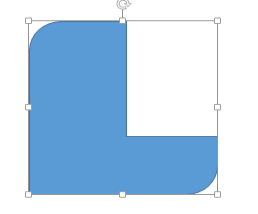
With PowerPoint 2013, one of the most noticeable design tool upgrades is that users can now merge two or more shapes together. This allows you to form custom shapes which cannot be made by simply editing the shape points.
Much like the Shape Path Operations tool in Photoshop, Powerpoint 2013’s Merge Shapes option allows you to combine, intersect, fragment, or subtract from shapes with ease. Use the steps below to utilize this feature.
1. Launch Powerpoint 2013.
2. Switch to the Insert tab.
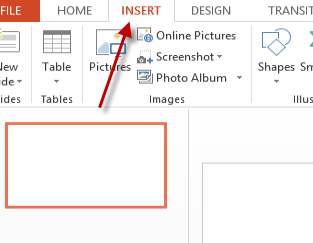
3. Click the Shapes button, choose the shape that you want, and draw the first shape on the slide.
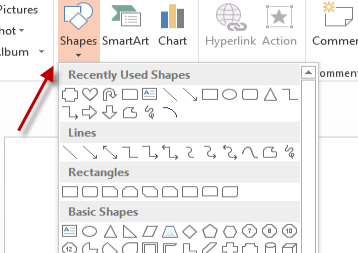
4. Repeat the third step, and draw the second shape on the slide.
5. Select the two shapes by holding the Ctrl key on your keyboard and left-clicking on the shapes.
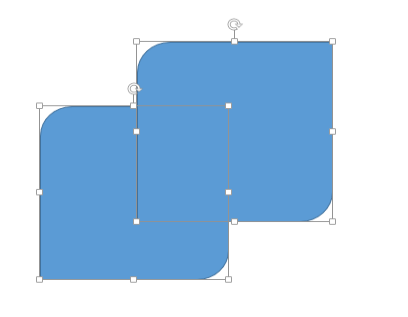
6. When the shapes are selected, you can access the Format tab on the ribbon.
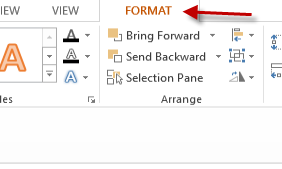
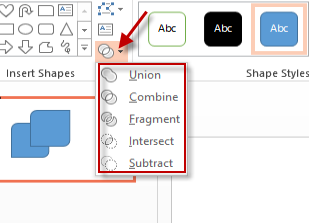
7. Click the small Merge Shape icon, and choose the option that you want from there. Available options are as follows: Union, Combine, Fragment, Intersect, Subtract.
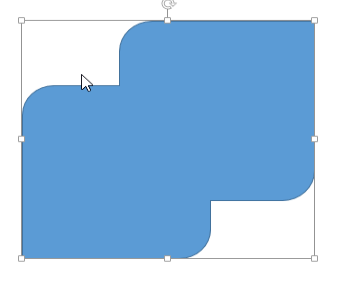
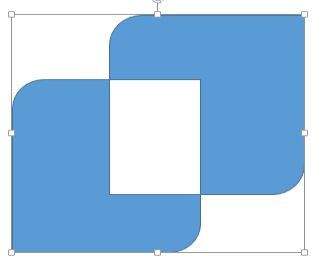
8. Below are how shapes appear with the options applied.
Union:
Combine:
Fragment:
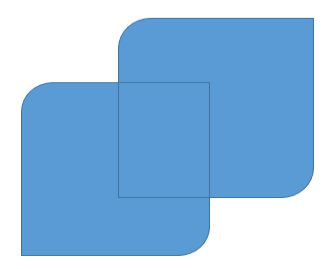
Intersect:
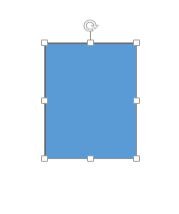
Subtract: