Unlike previous versions of Outlook, if you search for items in the inbox folder, the program will search the entire mailbox. This means items from other folders will also be included in the results page, which is unnecessary.
Most Outlook users are accustomed to navigating to a folder and then searching for the specific message they need. In Outlook 2013 the search is more global and encompasses all folders. For many of us with huge mail collections, searching all these folders can be quite slow and painful.
The following steps will help you configure the Search box to look for items in the current folder of use only. Please note that the tutorial is written based on the preview version of Office 2013. The steps may change in the final version of the suite. Please let us know in the comment field if changes are needed.
1. Launch Outlook 2013.
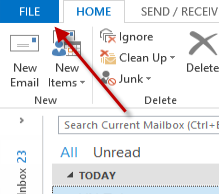
2. Click the blue File button at the top left of the window to open the Backstage view.
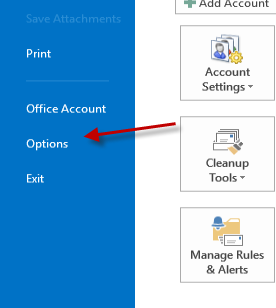
3. In the Backstage view, choose Options. This will open the Options window, without the Windows 8 interface (formerly known as Metro).
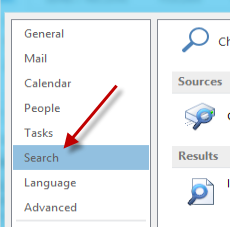
4. In the Options window, choose Search from the left side.
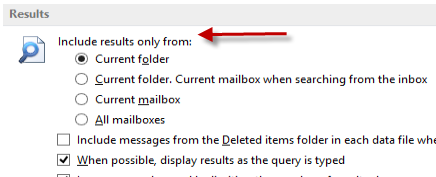
5. On the right side of the window, find the Results section. The Include results only from: setting will be set to Current folder. Current mailbox when searching from the inbox. Change this to Current folder as seen below.
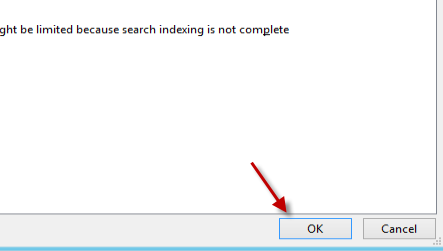
6. Click the OK button at the bottom of the window to save the settings.