


The Favorites folder found in Windows 7 and Windows 8 provides the user an easy way to organize and launch the folders that they use often.
The Favorites folder was introduced in Windows 7 and continues in Windows 8. Displayed within the left sidebar, Favorites provides easy access to popular locations within Explorer.
Multiple methods exist for adding a folder to Favorites; however, these step-by-step directions will walk you through one of the easiest ways.
1. First, launch Windows Explorer and open the folder which you want to pin into the Favorites. In this case we will open C:\Program Files folder.
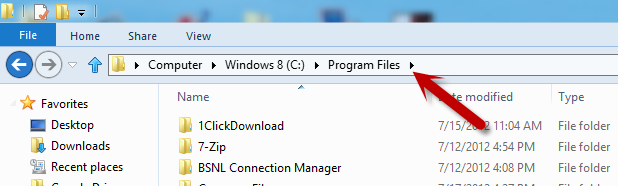
2. Once the desired folder is open, navigate to the left pane and right click on the Favorites menu. It can be identified by its Start-like icon.
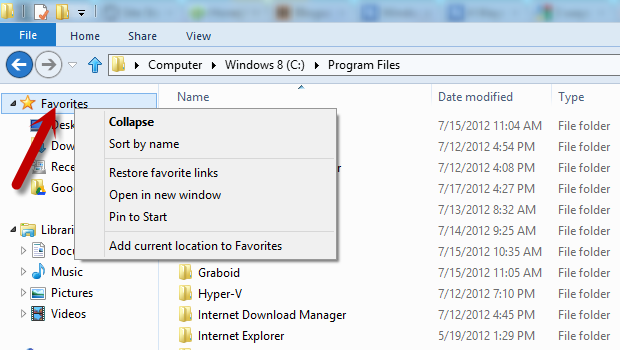
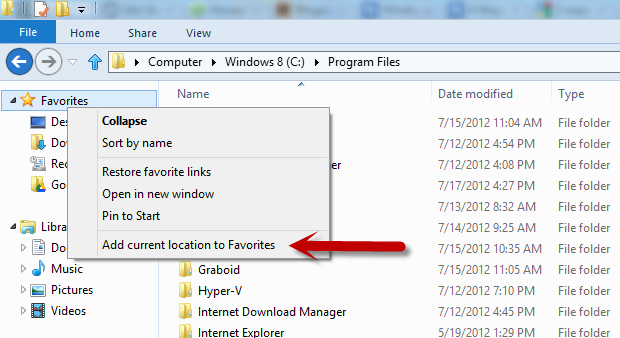
3.Then a new menu will appear. Select the Add Current location to Favorites option.
Additionally, folders can be dragged into the Favorites area as another method for pinning them there. Once you completed these steps, your desired folder will be added to the Favorites folder.





