

This recipe will explain how to install Windows Media Player 11 without having to Activate your windows copy / bypassing the WGA. This requires Winzip or any other .zip extracting program to be installed.
Bypassing the activation when installing Windows Media Player 11 is pretty simple. Basically what we will do is download the setup file (.exe) and then extract its contents to a folder and manually run the two components needed to install and run Media Player 11.
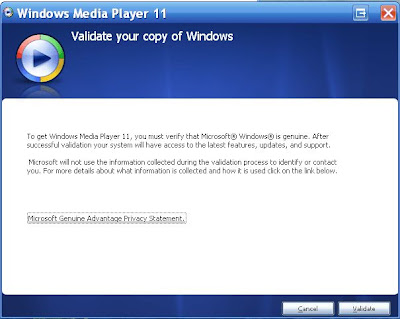
1. Download Windows Media Player 11. Go here to download.
http://filehippo.com/download_windows_media_player/
2. After you have the file downloaded (usually named: wmp11-windowsxp-x86-enu.exe), right-click on the File.
If you have Winzip installed, go to the Winzip menu, and choose to Extract to Folder X:\…\wmp11-windowsxp-x86-enu
A lot of .exe setup files are really just a self-executing zip file so you can use this method to extract files from .exe files with other installers too (ie device driver installers, if you only want the driver files and not the other ‘fluff’ that sometimes come with the installer.)

4. Once you do this, you will see a folder called wmp11-windowsxp-x86-enu. Go into the folder and now we will manually run the two files needed for Windows Media Player 11 to install.
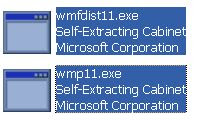
First run: wmfdist11.exe
This is the media player 11 runtime files.
Gp through the installation wizard and then run: wmp11.exe
This will in turn install Windows Media Player 11 and will bypass the activation part of the installer.

Once you finish the install, reboot and you should now have a working Windows Media Player 11 that will not require activation and in turn allow you to install on a non-activated XP install.




