

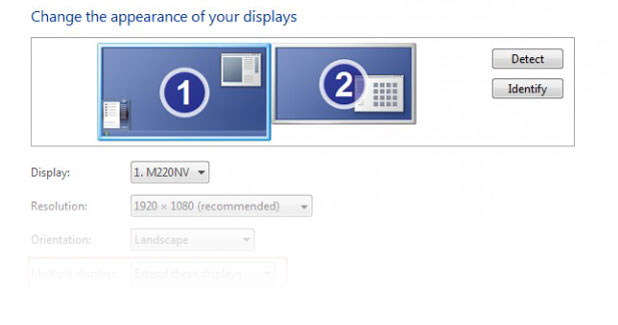
These days everybody has more than one monitor available. However, running a dual monitor setup can be tricky to get working correctly. This tech-recipes tutorial will get you started.
These directions are for Windows 7 although the directions for XP and Vista are very similar.
Dual monitors rule! First things first, make sure your computer can support two monitors. The box will need the right outputs for dual monitors. I use a higher end GPU which allows me multiple HDMI outputs; however, Windows 7 is smart enough to use outputs of different types. For example, if you computer has a DVI and VGA outputs, you still can get a dual setup working. Most laptops have an external monitor connection which can be used as your second monitor.
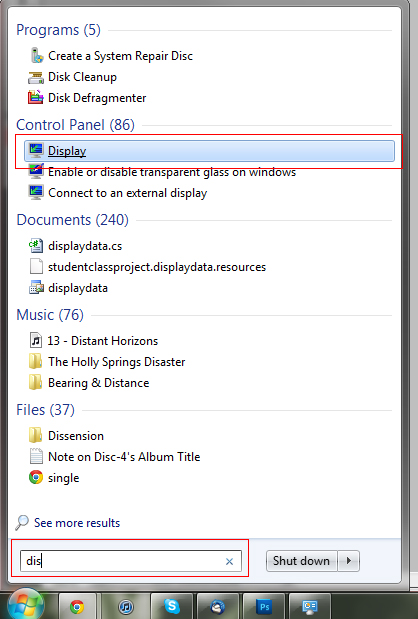
1. Open the Start button on your desktop and in the search bar type Display. Click on the Display option when it appears.
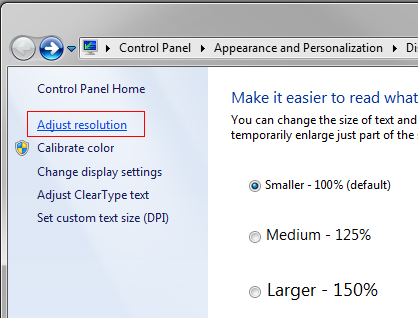
2. From this control panel screen select Adjust Resolution on the left.
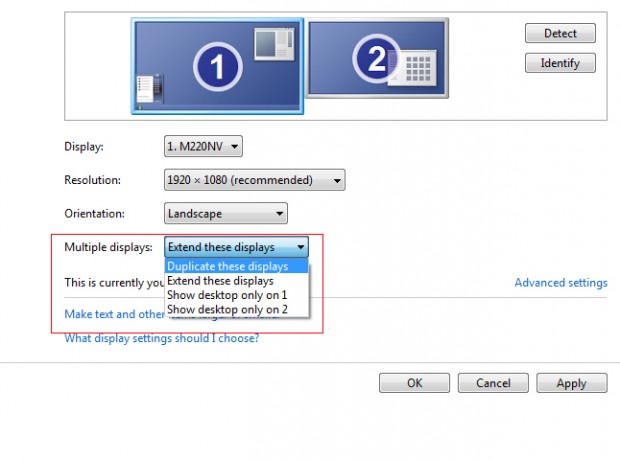
3. Your second monitor should be detected. If it is not click Detect then Identify. My favorite thing to do is use both monitors as one big desktop. To do this, under Multiply Display select Extend these displays. You will likely want to make sure your left monitor is set as the main display where your Windows task bar will appear.
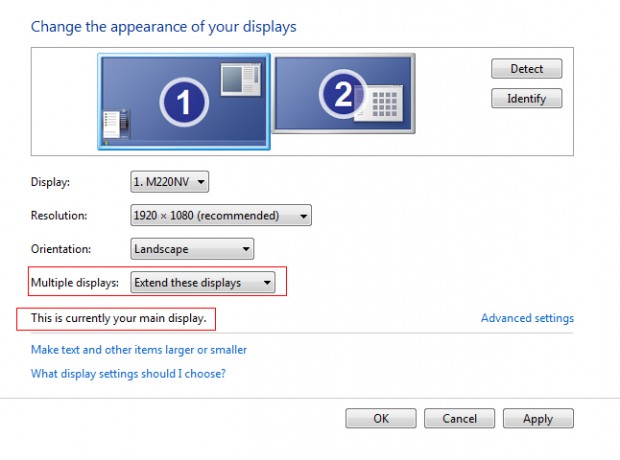
4. You can also duplicate the display which clone the image one one monitor to the second one.
Hopefully, you are now running a two monitor setup. If you find yourself having trouble getting your second monitor to display, just post in the comments and I will help you out. Check out Jimmy’s dual monitor tricks for additional cool things to do with a two monitor configuration.





