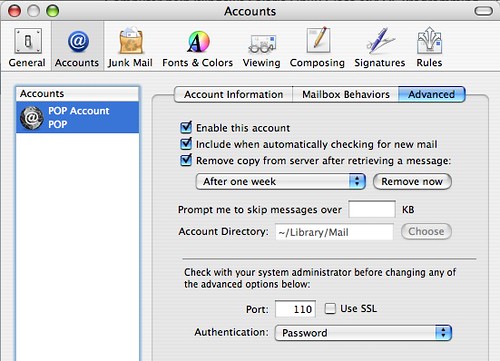
Typically after you download your email from your POP server to your computer, the messages are deleted from the server. By leaving your email on the server for a certain period of time, you can download your email to more than one computer easily.
If you have multiple computers from which you like to check your email, you may want to leave your messages on your server for a while. Typically when you download your email it removes the messages from the server. Then when you connect with another computer, you have no messages to pull. However, if you leave messages on the server, then you can download the email to any computer that you use.
Here is how to leave messages on the POP server in OSX:
1. Open Mail
2. Click Mail menu
3. Select Preferences
4. Select Accounts
5. Select Advanced
6. Check Remove copy from server after retrieving a message
7. Set time you want to leave messages on server
8. Close dialog box and save