Safari’s Reading List allows users to read web pages later. If you don’t want it taking up room on the Bookmarks bar or you want it on the Toolbar because you don’t use the Bookmarks bar, here’s how to remove it.
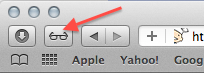
The Reading List icon resides on Safari’s Bookmarks bar by default.
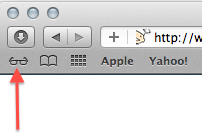
To remove the icon from the bookmarks bar:
1. Open Terminal.
2. Execute the following Terminal command:
defaults write com.apple.Safari ProxiesInBookmarksBar '("Top Sites")'
3. Restart Safari.
The icon will no longer be on the bookmarks bar.
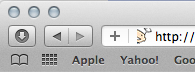
To restore the icon to the bookmarks bar:
1. Open Terminal.
2. Execute the following Terminal command:
defaults write com.apple.Safari ProxiesInBookmarksBar '("Top Sites","Reading List")'
3. Restart Safari.
OR
You can place the icon on Safari’s toolbar.
1. Open Safari.
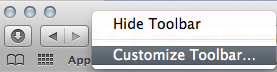
2. Right-click the Toobar and select Customize Toolbar.
3. Drag the Reading List icon from the Customize Toolbar window to the desired location on the Toolbar.
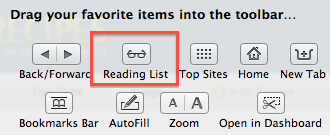
The Reading List button will now be located on the Toolbar.
You can also access Reading List by going to the menu bar, clicking View and selecting Show Reading List or use the keyboard combination of Shift+Command+L.