
OS X Lion: Save Space on Menu Bar by Changing User’s Name to an Icon

In Lion, the name for the individual logged onto the computer is displayed in the menu bar. Since this can take up quite a bit of room, you can save space by changing it to an icon while maintaining the fast user switching access.

1. Go to the Menu Bar and click on your name.

2. Click Users & Groups Preferences.
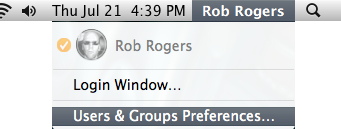
3. When the Users & Groups window appears, click Login Options in the left pane.
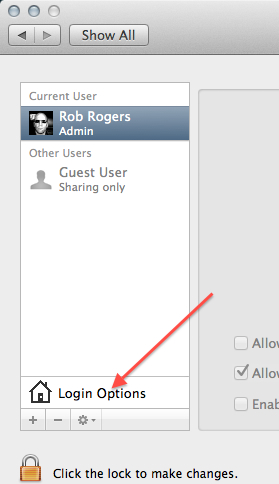
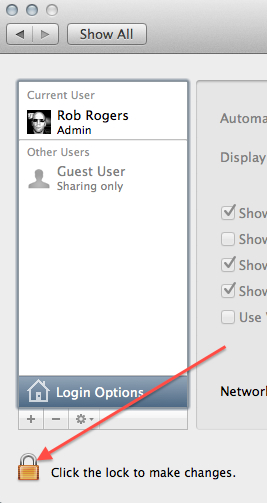
4. Click the lock in the lower left corner of the window to unlock the options. Input your credentials when prompted.
5. Locate the Show fast user switching as checkbox and click the corresponding dropdown. Select Icon from the list.
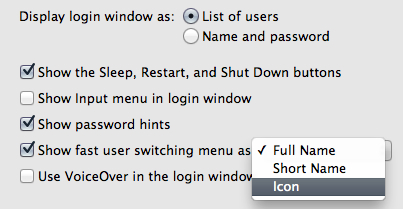
Your name will be replaced by a simple icon, while still allowing you to easily access the login window from the menu bar.

If you don’t use fast user switching, you can just uncheck the Show fast user switching as checkbox and save even more room.


 

About Rob Rogers

Once a prolific author here on Tech-Recipes, Rob has moved on to greener pastures.
View more articles by Rob Rogers

The Conversation

Follow the reactions below and share your own thoughts.

3 Responses to “OS X Lion: Save Space on Menu Bar by Changing User’s Name to an Icon”

  1. July 25, 2011 at 10:06 am, Jon X Mack said:

    I just dragged it out of the menu bar (cmd + drag allows you to move your menu bar items around).

    Reply

  2. July 25, 2011 at 10:06 am, Jon X Mack said:

    I just dragged it out of the menu bar (cmd + drag allows you to move your menu bar items around).

    Reply

  3. August 03, 2011 at 5:12 pm, Anonymous said:

    Thanks!

    Reply

Leave a Reply

You may also like-

OS X: Display Date on Menu BarI never understood why OS X does not provide an easy way to place the day on the menu bar. This tech-recipe describes a ...


