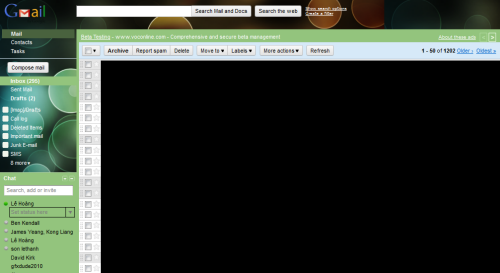
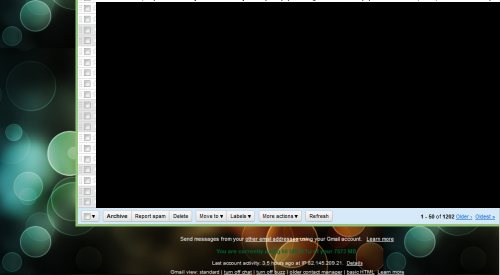
After hours and hours of staring at Gmail, the supplied themes can be very boring. Luckily, Google allows the user to tweak and customize Gmail’s appearance.
1. Log in to your Gmail account.
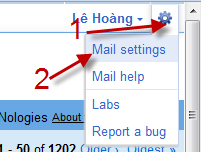
2. Click on the small gear icon -> Mail Settings.
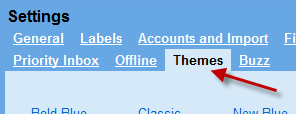
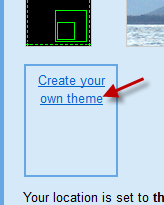
3. Go to Themes tab, scroll down and click on Create your own theme.
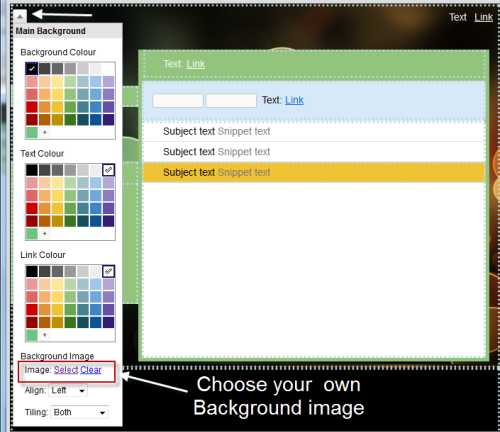
4. In the new popup window, move your mouse over the area that you want to change, click the small arrow icon and start costomizing. There is also an option for you to choose your own background image.
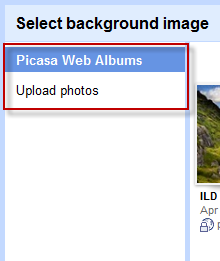
5. You can choose an image from your existing Picasa Web Album, or you can upload the image from your computer.
6. When you finish, hit Save. If you don’t like the changes, hit Reset to return to default settings.
An example: