

AutoRecover feature in Microsoft Office can be really helpful. It can be a lifesaver when you are working on a document your app or system system crashes. However, the autorecover files are always saved to your system drive which is not always ideal. This tech-recipe guide will show you how to change the default AutoRecover locations for the applications included in Microsoft Office 2010.
1. Launch Microsoft Word, PowerPoint or Excel.
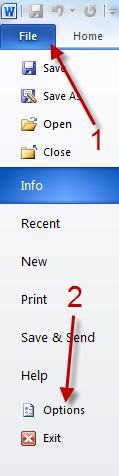
2. Go to File->Options.
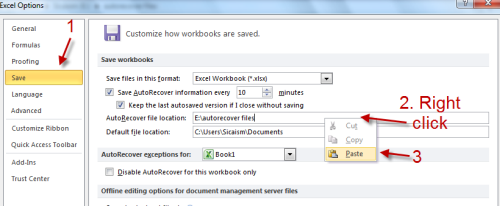
3a. In Microsoft PowerPoint/Excel 2010’s options window, go to Save, look for AutoRecover file location and paste your preferred folder location there. (then go to step 5)
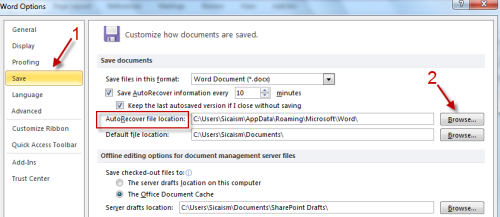
3b. In Microsoft Word 2010’s options window, go to Save, look for AutoRecover file location and click Browse.
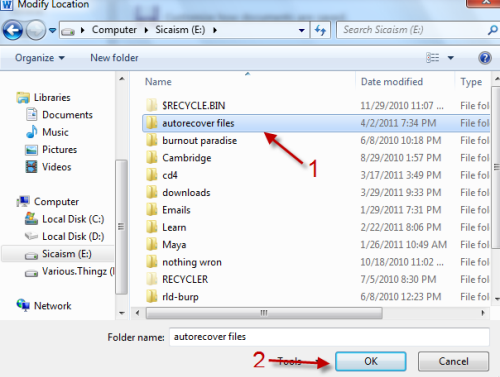
4. Choose your preferred folder and hit OK.
5. Hit OK in Options window to save the setting.
These directions will work for Word, Powerpoint and Excel 2010.




