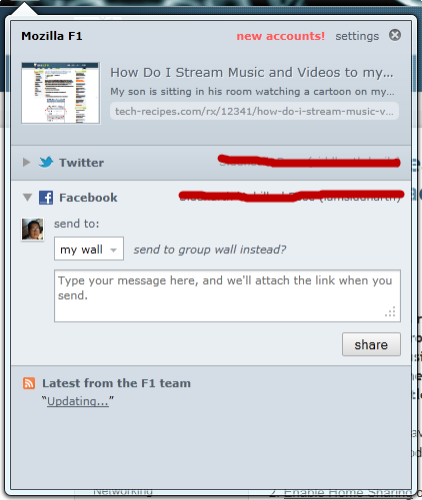
This tech-recipe demonstrates how to share a page on Twitter and Facebook with a single key stroke.
We will be using an extension called F1 by Mozilla labs. Install it here.
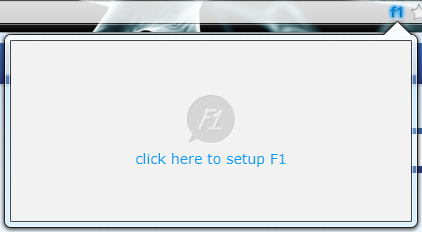
Once installed, a f1 icon is displayed in the right side of the menu bar. Click on the f1 button to set it up the first time.
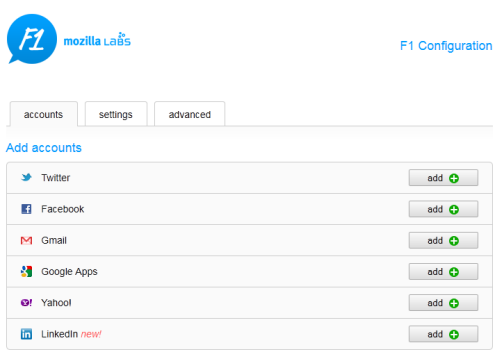
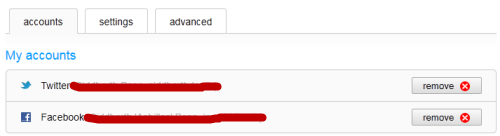
A list of social networks is displayed. Setup your Twitter and Facebook account by clicking on Add. Enter your credentials and grant it access.
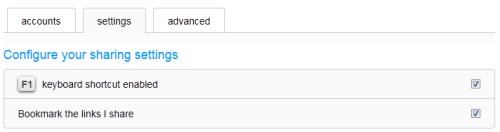
On the Settings tab you can choose to check/uncheck the option which bookmarks every page you share.
Once the settings are done, click on Done.
Navigate to the page you want to share and hit the F1 button, i.e. the F1 function key and click on share in the pop-up window. The page is shared on your wall and posted to your wall.