When launching an Office application, most people expect it to open a blank file ready for editing. Word should open a blank document, Excel should open an empty workbook, and PowerPoint should open a fresh presentation. However, in Office 2011, the Gallery is now opened by default instead. These directions show to how prevent the Gallery from opening when Word, Excel, or PowerPoint is launched.
1. Open the desired Office 2011 application (Word, Excel, or PowerPoint).
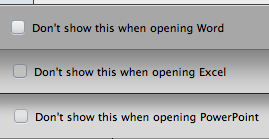
2. When the application’s Gallery opens, go to the bottom of it and check the Don’t show this when opening Word (Excel or PowerPoint) checkbox.
3. Select the blank document, workbook, or presentation template and click the Choose button.
Now the Gallery won’t come up when opening that particular Office application. To access templates in the future, simply go to the Menu, click File and select New from Template or use the keyboard shortcut Shift+Command+P.