


If you’ve prepared a fancy Word document that contains background images and/or colors, you will need to make a change to the Options setting for these to show up when printed.
1. Open up the desired Word document.
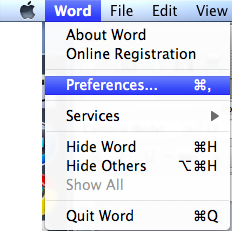
2. Go to the Menu, click Word and select Preferences.
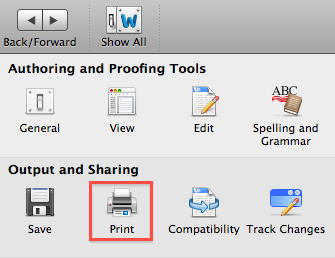
3. In the Output and Sharing section, select Print.
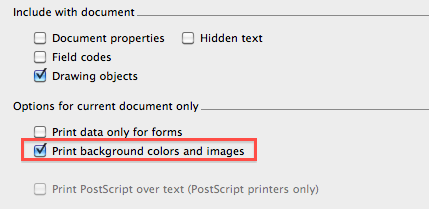
4. Go to the Options for current document only section.
5. Check the Print background colors and images checkbox.
6. Click the OK button.




