Microsoft Word: Change the Font Face and Size in Comments

Contributor Icon Contributed by MickeyMouse  
Tag Icon Tagged: Microsoft Office  

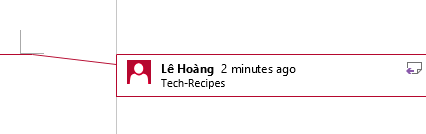
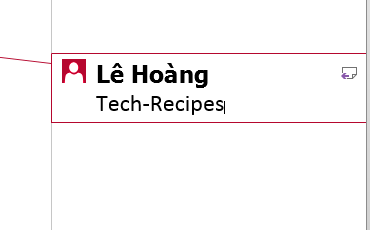
When editing documents for others, the comments feature of Word can be very useful. However, the small black on red text is painful. Here’s how to change the appearance of the comments


Change the Comments Style:

    1. Open Word
    2. Click Format menu
    3. Click Styles and Formatting
    4. At the very bottom of the Formatting sidebar is a dropdown box. Select custom for this dropdown.
    5. Check Balloon Text (Not Comment Text)
    6. Click OK
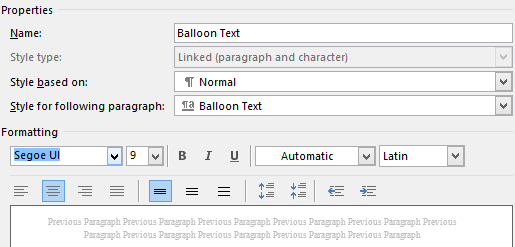
    7. Select Balloon Text in the Formatting sidebar
    8. Click Modify
    9. Now you can select the font face, style, and color you want for your comments.
    10 Click OK
 

25 Comments -


  1. DOC said on November 11, 2008

    Thanks! Shame I couldn’t find this info in the help file, or on Microsoft’s site, but thank you for posting this

  2. Heidi said on June 4, 2009

    I was so happy to find this response but there is no Style and Format tab no in Vista.
    Is there still a way?

  3. Anonymous said on September 16, 2009

    It’s in Home/Styles. Click the arrow to open the dialogue box. Slide to Comments, right click on Modify.

    It took me a while to figure it out too. Thanks again Microsoft for wasting our time!

  4. Name said on September 20, 2009

    what about for 2007?

  5. Anonymous said on September 22, 2009

    this has been really helpful!

  6. Anonymous said on November 8, 2009

    Very helpful and thanks. However, I can’t figure out how to have the program keep the setting. I have to go back and change the options every time. Any suggestions? Many thanks.

  7. Anonymous said on November 9, 2009

    Thanks for very important and usuful information. We have more than 500 document files to handle and we have to set it for each file seperataly .. any way we can set it once and for all?
    thanks again

  8. Anonymous said on January 17, 2010

    This was very helpful. Like others, I was not able to find this info in the Microsoft help file or on their web site.

  9. Anonymous said on March 3, 2010

    Please it’s bugging me, how to do it in MS Word 2007

  10. Jean Larsen said on April 22, 2010

    How do I permanently set the font, font size and font color in MSworks word processor documents?

  11. Anonymous said on July 14, 2010

    Thank you. A thousand times thank you.

  12. Jare said on August 22, 2010

    Thank you. This really is a big help.

  13. Clewis said on December 1, 2010

    I do not see format in Windows XP.

  14. miakka said on December 2, 2010

    Thank you so much!
    How come Microsoft don’t have such help for its users?! Such a waste of time looking for ways on how to do a simple task.. tsk tsk..

  15. thomme said on December 24, 2010

    Thanks – was driving me nuts.

  16. Don0303 said on February 3, 2011

    When I use the balloon/comment feature in MS Word (‘03 or ‘07), my comments look fine, but the dotted lines are faint. How can I darken them?

  17. Dani said on March 11, 2011

    For MS Word 2007:

    On the “Home” menu, click the dropdown menu on the bottom righthand corner for “Styles” (fourth box from the left on the toolbar).
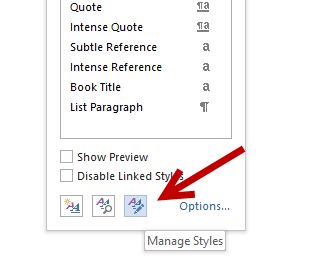
    Select “Comment Text” and then click the third icon from the bottom that says “Manage Styles” when you hold the cursor over it.
    Click on “Modify” and the options for font, size etc. will come up.
    Make sure you select “New documents based on this template”.

  18. Oleg said on March 15, 2011

    Thanks for MS Word 2007 hint. That was really helpful. Shame on Microsoft.

  19. PeterS said on April 5, 2011

    For MS Word 2010
    On the “Home” menu, click the dropdown menu on the bottom righthand corner for “Styles” (fourth box from the left on the toolbar).
    Click the third icon from the bottom that says “Manage Styles” when you hold the cursor over it.
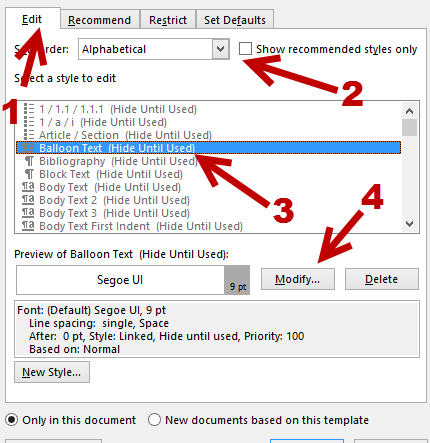
    Click on “Edit”- tab and the options for font, size etc. will come up.
    Find the Style Ballon Text (Always Hidden) and then click Modify. Now you’re able to change the font size etc.

  20. Patryannz said on May 23, 2011

    Thanks so much … this probleam has been driving me crazy :-) 

  21. Rajnish said on May 25, 2011

    Thank,You make my day

  22. Gene said on October 15, 2011

    But how do you get rid of the default text between brackets [] ? I want to change “Comment [MSOffice]” to say “Comment [Me]” or nothing to save space.

  23. Susan said on October 26, 2011

    Thanks a million! I’ve been struggling with this for too long.

  24. Jessica said on November 21, 2011

    thank you so much, I thought I was quite an advanced Word user but this option is so buried!

    Thanks PeterS for MS 2010 instructions :)

  25. Chan said on November 21, 2011

    For MS 2010 I prefer to change my Review Comment style
    I did want ‘PeterS said on April 5, 2011′
    But it’s seem work as i change ‘Normal Text’ or ‘Comment text’ for just sometimes (- -”

    anyway, Thank u a lot all u guys !!


RSS feed for comments on this post. TrackBack URL

Leave a comment -