Google Maps for Android: How to Sign in or Sign out of Latitude
Google Latitude allows people to allow certain people to view their current location. Here are the required steps to sign in or sign out this service on your Android phone. If you are worried about Google stalking your location, this is how to disable it.
To sign in:
1. Launch Google maps on your device.
2. Tap the device’s menu button.
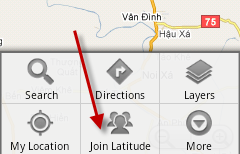
3. Choose Join Latitude. If you have added your Google account, you can sign in automatically.
To sign out:
1. Tap menu button.
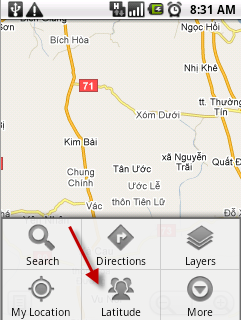
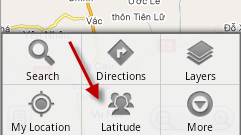
2. Go to Latitude.
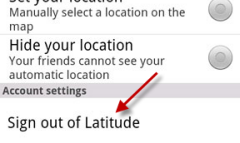
3. Tap the menu button again and choose Privacy.
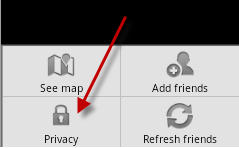
4. Choose Turn off Latitude.
About Lê Hoàng
When not creating exciting new Android games, Lê Hoàng is here crafting tutorials, tweaks, and fixes for your enjoyment.
View more articles by Lê Hoàng
The Conversation
Follow the reactions below and share your own thoughts.


December 24, 2010 at 5:52 pm, designsbytes.com said:
like the images description
March 08, 2011 at 10:14 am, WiredEarp said:
My version didn’t have these options. On version 5.2.0, do this:
From map screen press menu, then Latitude (or ‘Join Latitude’ if you haven’t joined). Then, click ‘settings’. You can turn off your location reporting here – but what isn’t obvious is you can also scroll the window down, showing the final option ‘Sign out of Latitude’.
I believe the issue is it seems they have changed the name of the ‘privacy’ button, to ‘settings’.